
how to fix packet loss gaming usually comes down to one of three things: Wi‑Fi instability, a stressed router or local network, or loss happening upstream at your ISP or the game route.
If you’re dealing with rubberbanding, shots not registering, sudden teleporting, or voice chat cutting out, packet loss is often the hidden culprit, more than “high ping.” The good news is you can narrow it down in under 20 minutes if you test in the right order.

A common mistake is trying random “boosters” before proving where the loss occurs. This guide focuses on practical checks, what the results mean, and fixes that actually change your network behavior, not just your hopes.
What packet loss looks like in games (and why it feels worse than ping)
Packet loss means some data never reaches its destination, so the game has to guess, wait, or correct. That’s why it can feel like you’re playing on ice even when your ping number looks “fine.”
- Rubberbanding: your position gets corrected after the server catches up
- Hit registration issues: you shoot, the server never sees part of that input
- Random stutters: bursts of loss create micro-freezes, especially in shooters
- Voice chat drops: UDP streams hate unstable links
According to Cloudflare (which explains packet loss basics in its network learning materials), loss can come from congestion, faulty hardware, wireless interference, or routing problems. Games are extra sensitive because they prioritize real-time delivery over perfect retransmission.
Fast self-test: find out where the loss is happening
Before you change settings, do a quick triage. You’re trying to answer one question: is the loss inside your home, or outside it?
10-minute checklist (minimal tools)
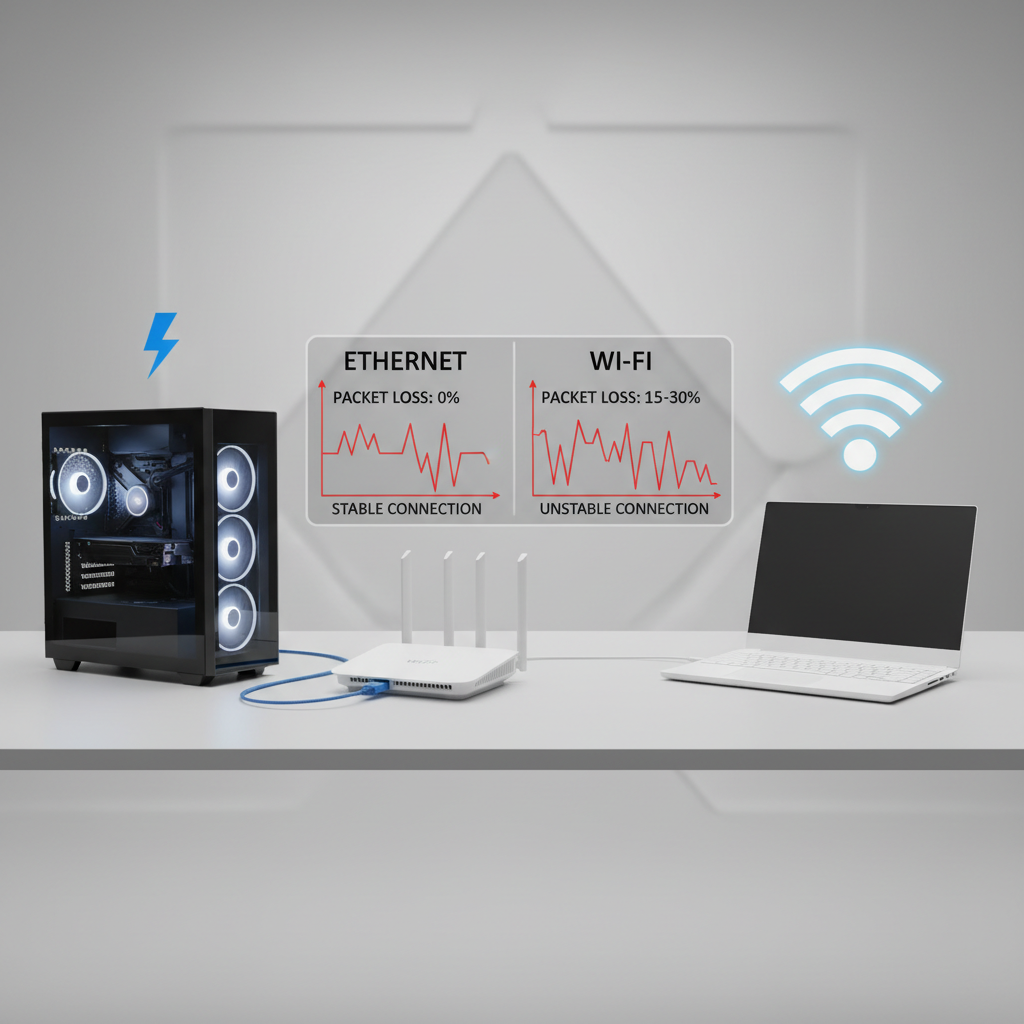
- Switch to Ethernet for one match or a quick test session (even temporary)
- Reboot modem + router (unplug 30–60 seconds) and retest
- Test another device on the same network (laptop/console) to see if it’s system-specific
- Try another server/region in-game if available
Interpretation that usually holds up:
- Ethernet fixes it → Wi‑Fi or local congestion is the likely cause
- Ethernet still shows loss → router/modem, ISP line, or upstream route
- Only one game shows it → route to that game, server load, or game netcode
If you can run a basic network test
On Windows, tools like ping and pathping can reveal whether drops occur at your first hop (router) or later on the route. On macOS/Linux, ping and traceroute help in a similar way. You don’t need to become a network engineer, just watch patterns.
- Loss to your router (often 192.168.0.1 / 192.168.1.1) suggests Wi‑Fi interference, cable issues, or router strain
- Clean to router but loss to a public IP suggests ISP/upstream issues
According to Microsoft documentation on Windows networking tools, pathping combines ping and traceroute behavior and can help spot where packet drops begin along a route.
Most common causes at home (and what they look like)
In real households, packet loss tends to be boring: Wi‑Fi noise, overloaded routers, messy cabling, or background traffic you forgot existed.
- Wi‑Fi interference: loss spikes at certain times, worse when microwave/Bluetooth/neighbor networks are busy
- Weak signal / bad placement: stable in one room, terrible in another, “fixes” when you move closer
- Router bufferbloat or CPU overload: loss during uploads, streams, cloud backups, or when many devices are active
- Bad Ethernet cable or port: random loss even on wired, often sensitive to cable movement
- Modem signal issues: frequent disconnects, lots of correctable/uncorrectable errors in modem logs
Fixes that work: step-by-step, starting with highest impact
If your goal is to stop loss quickly, the order matters. Do the high-signal, high-payoff fixes first, then get fancy only if needed.
1) Prefer Ethernet (or make Wi‑Fi behave like it)
- Use wired Ethernet for your gaming device when possible
- If wiring is hard, consider MoCA (Ethernet over coax) where coax exists, it’s often more stable than powerline
- If you must use Wi‑Fi, use 5 GHz or 6 GHz close-range, and avoid crowded channels
For apartments, a practical move is placing the router higher and more central, not on the floor behind the TV. That alone can reduce retransmissions that feel like packet loss.
2) Fix Wi‑Fi settings that commonly cause loss
- Separate SSIDs for 2.4 GHz and 5 GHz/6 GHz so your device doesn’t roam at the worst moment
- On 2.4 GHz, set channel width to 20 MHz (less interference), pick channel 1/6/11
- On 5 GHz, avoid DFS channels if you see frequent drops (some devices handle DFS roaming poorly)
- Update router firmware, then reboot after changes
According to FCC consumer guidance on Wi‑Fi and interference, household devices and neighboring networks can impact wireless performance; reducing interference and improving placement often helps stability.
3) Turn on QoS or SQM to reduce congestion loss
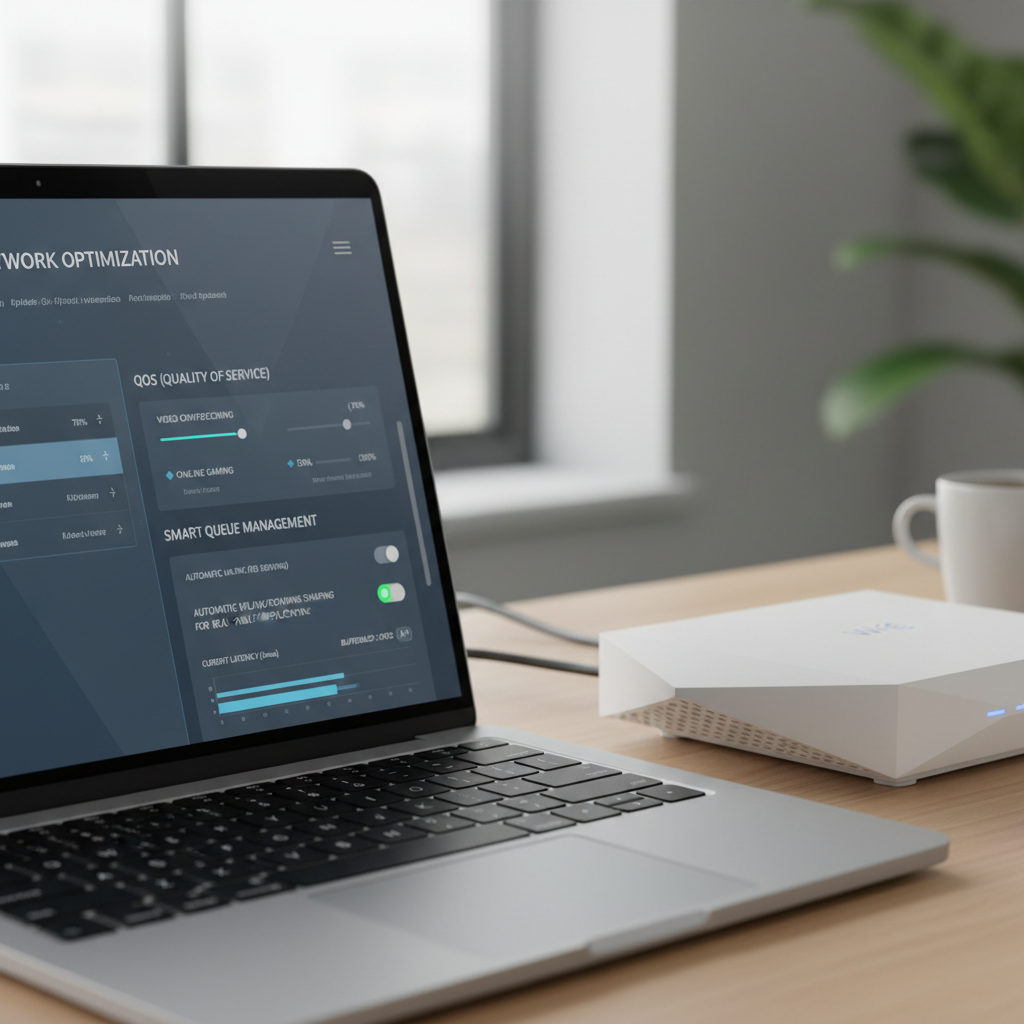
When packet loss appears during household uploads or busy evenings, you may be seeing congestion and queueing problems. Traditional QoS sometimes helps, but SQM (Smart Queue Management) is the setting that tends to make a noticeable difference on supported routers.
- Enable SQM (often listed as CAKE or fq_codel on advanced firmware)
- Set your upload/download limits to about 85–95% of real speed so the router, not the ISP, manages the queue
- Prioritize gaming device traffic if your router offers device-based QoS
This is one of the most “unsexy” fixes that actually makes games feel consistent.
4) Reduce background traffic that causes bursts
- Pause cloud backup and large downloads on PCs and consoles
- Disable auto-updates during play sessions
- Check for upstream-heavy apps (video calls, security cams, file sync)
If you’re searching how to fix packet loss gaming and you share internet with roommates or family, this is often the real fight: upstream saturation triggers drops first.
5) Replace the weak link (cables, router, modem) when tests point there
Not every router is built for many devices plus low-latency gaming. If your router runs hot, reboots, or shows unstable behavior under load, swapping it can be more effective than tweaking settings for weeks.
- Try a new Cat6 Ethernet cable and different router port
- If your modem is old or not on your ISP’s recommended list, consider replacing it
- For gaming households, look for routers with proven SQM support and solid CPU performance
Quick diagnosis table: symptom → likely cause → best next move
| What you notice | Likely cause | Next move |
|---|---|---|
| Loss spikes only on Wi‑Fi | Interference, weak signal, roaming | Switch to Ethernet, optimize 5/6 GHz, router placement |
| Loss during uploads/streams | Congestion, bufferbloat | Enable SQM/QoS, cap bandwidth to 85–95% |
| Loss even to router IP | Bad cable/port, router overload, Wi‑Fi issues | Replace cable, change port, update firmware, reduce load |
| Only one game/server region | Routing or server-side issues | Change region, test VPN carefully, contact ISP with evidence |
| Evening-only loss | Neighborhood ISP congestion | Document tests, ask ISP about node congestion, consider plan/hardware |
Advanced options (useful, but not always necessary)
These steps can help when your home network looks clean but you still see drops to specific game routes. They’re also the steps most people overuse, so treat them as targeted tools.
Try a gaming VPN carefully
A VPN can sometimes route around a bad path, but it can also add overhead or pick a worse route. If you test one, do it like an experiment: same server, same time window, compare stability more than ping.
Adjust DNS (for matchmaking, not usually for loss)
DNS changes can speed up lookups and occasionally help with server selection, but they rarely fix actual packet loss once you’re in a match. Use it for convenience, not as your main strategy.
Check NIC drivers and power settings
- Update network adapter drivers from the manufacturer
- Disable overly aggressive power saving on Wi‑Fi adapters if you see periodic drops
Common mistakes that waste time
- Chasing “0% loss” in one short test, while ignoring patterns across 10–15 minutes
- Changing five settings at once, then not knowing which one helped
- Assuming higher speed means better gaming, stability matters more than headline Mbps
- Ignoring upload, many gaming problems start when upstream gets crowded
- Replacing everything immediately, when one clean Ethernet test could confirm Wi‑Fi is the issue
When it’s time to involve your ISP or a pro
If you can reproduce loss on Ethernet, on multiple devices, after reboots, and you see it begin beyond your router, it’s reasonable to bring your ISP in. The key is giving them something actionable.
- Time windows when it happens, plus screenshots/logs from ping/pathping or your router stats
- Confirmation you tested wired direct to the router, and ideally direct to modem if your setup allows
- Notes on weather-related issues if you’re on older lines, since signal problems can be intermittent
If you’re in a complex setup (mesh systems, managed switches, multiple APs), a local network technician can help validate cabling and interference. Not because you can’t learn it, but because it saves weeks when the environment is messy.
Key takeaways (keep this short list)
- Prove where loss happens before buying gear or toggling settings
- Ethernet is the fastest way to confirm whether Wi‑Fi is the problem
- SQM/QoS helps most when loss appears during household internet use
- If loss starts outside your network, document it and escalate to your ISP
Conclusion: a realistic path to stable matches
how to fix packet loss gaming isn’t a single magic switch, it’s a short process: isolate Wi‑Fi vs wired, remove local congestion, then decide whether the problem lives with your hardware or upstream routing. If you do the tests in order, you usually get a clear answer quickly.
Action steps to take today: run one wired test session, then enable SQM/QoS if your router supports it and you share bandwidth with others. If wired still drops, gather a couple of clean logs and contact your ISP with specifics.
FAQ
Why do I have packet loss in games but my speed test looks fine?
Speed tests focus on throughput, not real-time stability. You can have plenty of Mbps and still drop small UDP packets due to Wi‑Fi interference, bufferbloat, or routing problems.
Is packet loss always my ISP’s fault?
No. A lot of loss happens inside the home: crowded Wi‑Fi, router overload, or upstream saturation from background traffic. A wired test helps you avoid blaming the wrong layer.
Will changing my DNS fix packet loss?
Usually not. DNS affects how you find servers, not how packets travel during gameplay. It can help with matchmaking quirks, but it’s rarely the fix for in-match drops.
Does Ethernet completely eliminate packet loss?
It often removes Wi‑Fi as a variable, which is huge, but it can’t fix upstream congestion or a bad ISP route. Think of Ethernet as a clarity tool and a stability upgrade.
What’s an acceptable packet loss percentage for gaming?
Many games feel bad even with small, frequent bursts. In practice, you want sustained loss as close to 0% as possible during play, and you want to avoid spike patterns more than obsess over a single number.
Should I use a gaming VPN for packet loss?
Sometimes it helps when a specific route is unstable, but it’s not guaranteed. Test it at the same time of day, same server region, and keep it only if stability improves consistently.
How do I explain packet loss to my ISP so they take it seriously?
Provide timestamps, show you tested on Ethernet, and include results that indicate where loss begins (for example, clean to your router but loss on the next hops). That gives support a starting point beyond “my game lags.”
If you’re stuck repeating tests every night, a simpler path is using a router with strong SQM support and a stable wired connection to your gaming device, it won’t solve every upstream issue, but it removes the most common home-network causes fast.