
how to boost fps in any game usually comes down to two things: you either reduce the work your PC/console must do per frame, or you remove a bottleneck that keeps frames from finishing on time.
If you only change random graphics sliders, you can waste hours and end up with the same stutter. A better approach is to identify what limits performance (GPU, CPU, RAM, storage, thermals, background apps), then apply a short list of changes that reliably move the needle.
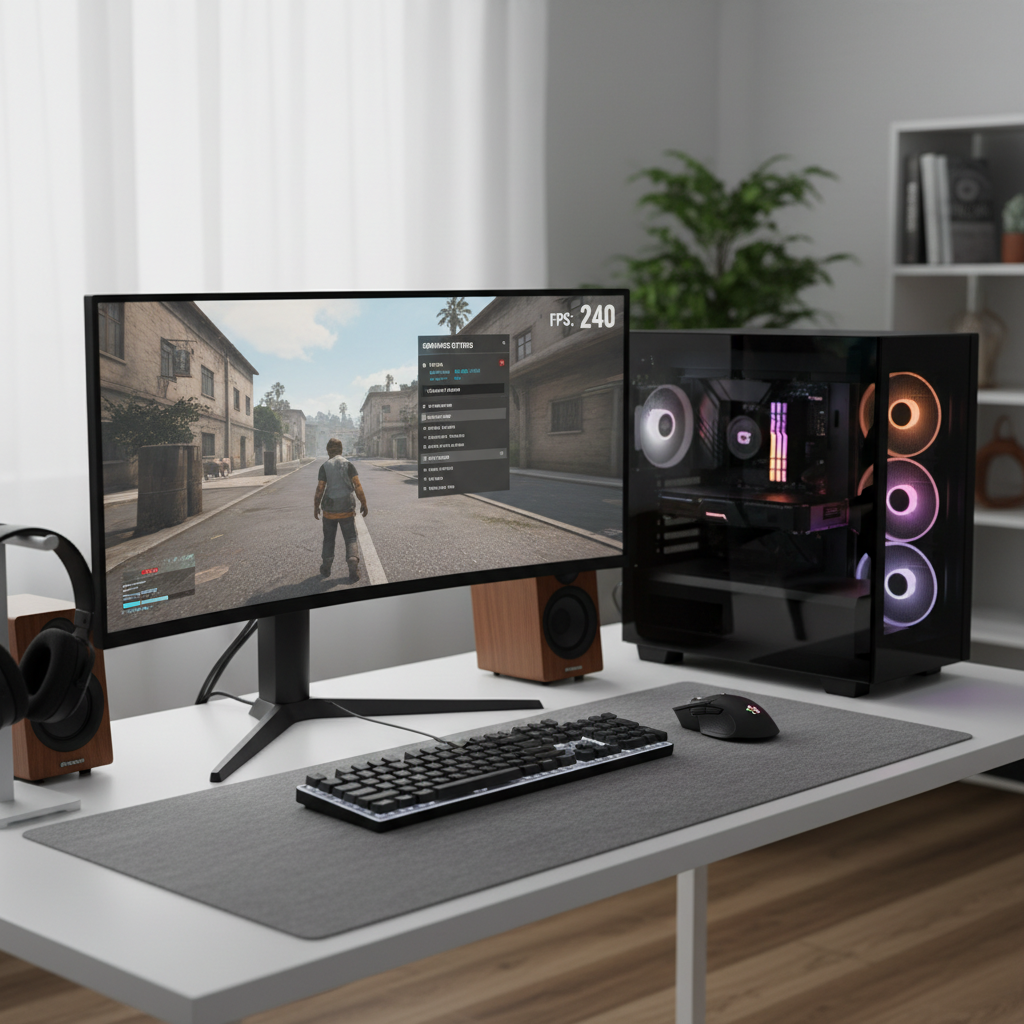
This guide focuses on simple, repeatable steps: quick checks, the biggest-impact settings, Windows fixes, and when it’s worth upgrading hardware. You’ll also see a small decision table so you can stop guessing.
Start by finding your real bottleneck (GPU vs CPU vs “something else”)
Before you tweak, watch what happens when FPS drops. If you can’t explain the pattern, you’ll keep making changes that feel productive but don’t match the problem.
Use an overlay (many games include one, or you can use built-in OS/GPU tools) and look for these tells:
- GPU-limited: GPU usage stays very high during drops, lowering resolution or heavy effects improves FPS.
- CPU-limited: GPU usage dips while FPS dips, big crowds or physics-heavy scenes tank performance, lowering resolution barely helps.
- RAM/VRAM pressure: sudden hitching when turning fast, texture pop-in, performance degrades over time in long sessions.
- Storage/streaming limits: stutter while entering new areas, assets load late, open-world traversal feels “bumpy.”
- Thermal or power throttling: FPS starts fine then sinks after 10–20 minutes, fans ramp hard, laptop feels hot.
According to Microsoft, Windows includes Game Mode and other gaming features that can help prioritize game workloads in many situations, but results can vary by system and what’s running in the background.
Quick self-check: 10-minute checklist before deep tuning
These are the basics that often fix “mystery” low frames without touching advanced settings. If you want the fastest win, do this section first.
- Restart the game and PC (sounds basic, still catches driver and memory weirdness).
- Update GPU drivers, then reboot. If a brand-new driver causes issues, rolling back can be reasonable.
- Confirm the game uses the dedicated GPU (common on laptops).
- Close heavy background apps: browser tabs with video, launchers, streaming software, RGB tools, overlay stacks.
- Disable unnecessary overlays one by one (Discord, Steam, GeForce overlay, Xbox Game Bar) and compare.
- Set your display to the correct refresh rate in Windows (many people accidentally stay at 60 Hz).
- Check power mode: on laptops, use a performance plan when plugged in.
- Verify you’re not running out of disk space on the drive that hosts the game.
- Make sure the game isn’t silently running borderless + V-Sync if you want lowest latency.
- Run a quick temperature check; if temps spike, clean dust and improve airflow.
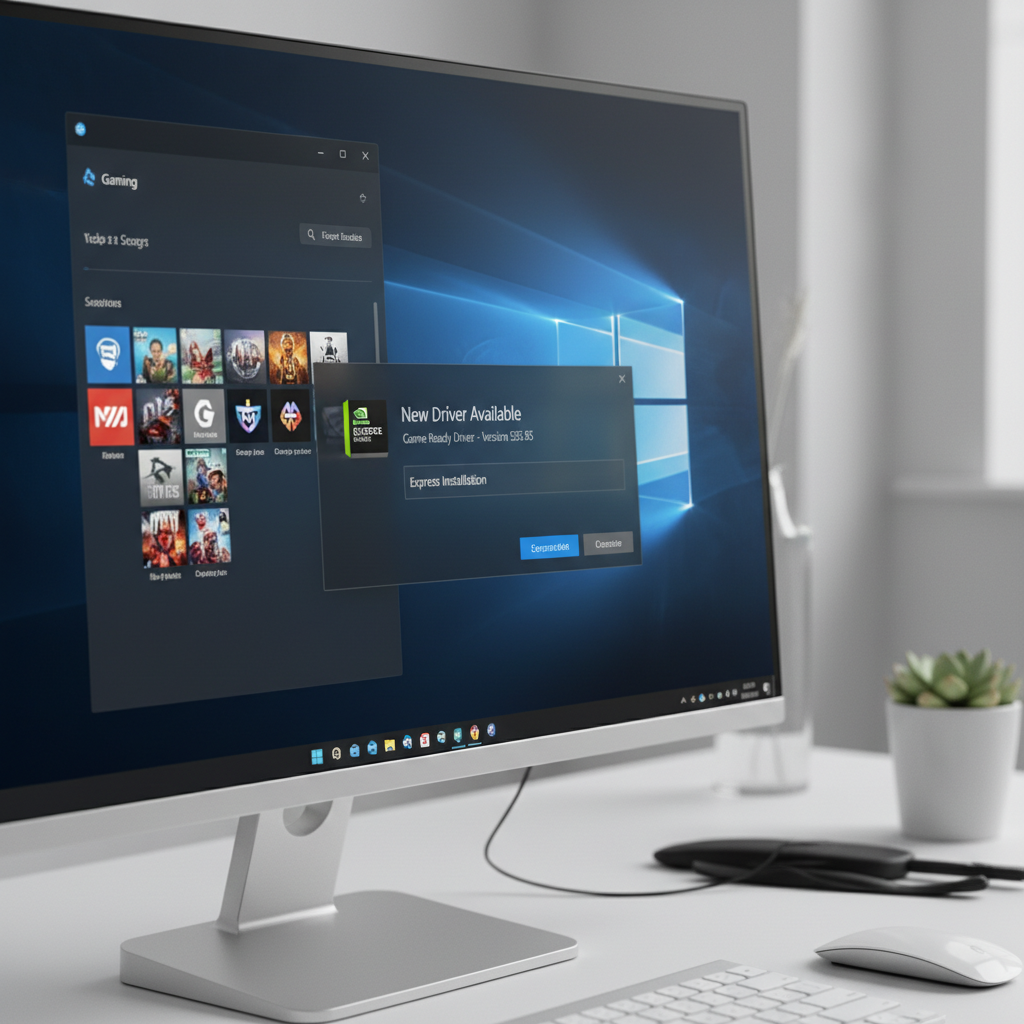
If you do the checklist and performance still feels inconsistent, don’t panic. That usually means the limitation is predictable, you just haven’t targeted it yet.
The graphics settings that usually matter most (and why)
Not all settings are equal. Some crush FPS for tiny visual gains, others barely cost anything. When someone asks how to boost fps in any game, this is the section that delivers the most consistent results.
High impact settings (reduce first)
- Resolution: the most direct lever for GPU load. If you need a fast jump, drop from 1440p to 1080p, or use resolution scaling.
- Ray tracing: expensive in many titles. Turning it off often stabilizes frame times immediately.
- Shadows: “Ultra” shadows can be brutal. Medium often looks fine in motion.
- Volumetrics / fog: tends to hit both GPU and frame pacing.
- Screen-space reflections: noticeable cost, especially at higher resolutions.
- Anti-aliasing: some methods are heavy; try a lighter option or rely on upscaling instead.
Settings that can help without tanking quality
- Upscaling (DLSS, FSR, XeSS): renders internally at lower resolution, then reconstructs. Often the best “free” performance if your game supports it.
- Dynamic resolution: useful for keeping a target frame rate during explosions and big fights.
- Texture quality: mostly VRAM-bound. If VRAM is tight, dropping one tier can reduce hitching more than it changes visuals.
Tip: Change 2–3 settings at a time, test the same scene for a few minutes, then keep or revert. Big batches make it impossible to learn what worked.
A simple decision table: match symptoms to fixes
Use this when you want a short path instead of tweaking everything.
| What you notice | Likely cause | Try this first |
|---|---|---|
| FPS improves a lot when you lower resolution | GPU limit | Enable upscaling, lower shadows/RT, cap FPS slightly below max stable |
| FPS drops in busy cities, AI fights, big multiplayer moments | CPU limit | Lower crowd/physics/view distance, close background apps, consider CPU upgrade |
| Micro-stutter when turning fast or loading new zones | Streaming, RAM/VRAM, storage | Lower textures, move game to SSD, verify RAM is sufficient, reduce background apps |
| Performance worsens after 15 minutes | Thermals / throttling | Clean dust, improve airflow, laptop cooling pad, check fan curves |
| Input feels laggy even when FPS looks okay | V-Sync/frame queueing | Try exclusive fullscreen, disable V-Sync, use VRR (G-Sync/FreeSync) if available |
Windows and driver tweaks that are worth your time
There’s a lot of “PC optimization” advice online, and plenty of it is noise. These are the changes that tend to be safe and measurable.
- Turn on Game Mode and keep Windows updated. According to Microsoft, Game Mode can prioritize gaming processes and reduce background activity in some cases.
- Hardware-accelerated GPU scheduling can help on some systems and hurt on others. Toggle it, test, keep what works.
- Set per-app graphics preference to High performance for the game, especially on laptops with iGPU + dGPU.
- Clean up startup apps that constantly run in the background.
- Driver control panel basics: avoid forcing heavy global settings; keep most items application-controlled unless you know the tradeoff.
- Shader compilation stutter: some games stutter the first time effects load. Let the game finish shader caching if it offers a precompile step.
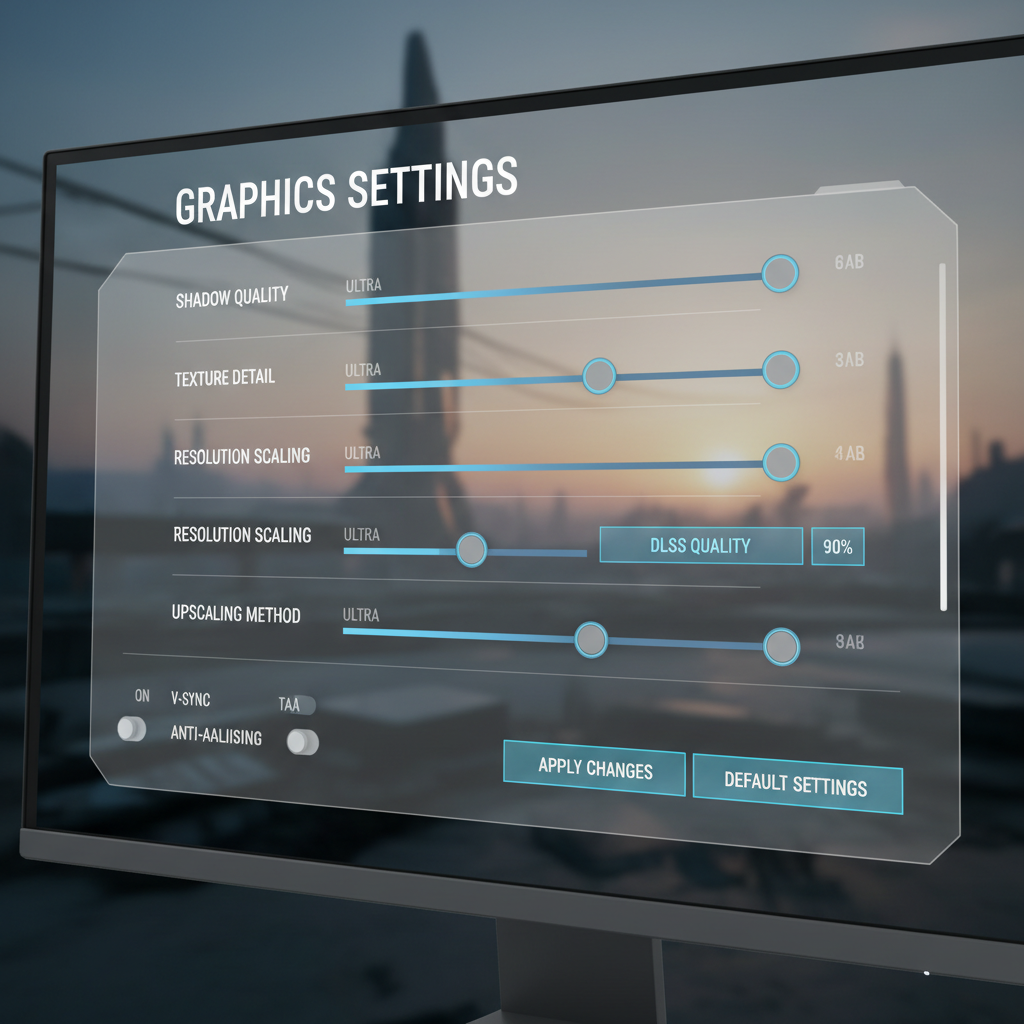
If you’re troubleshooting a specific title, it’s also worth checking the developer’s support page. Some games ship with known issues around certain driver versions or settings combinations.
Practical “do this now” playbook (by scenario)
Pick the scenario that matches your situation and run through it in order. This keeps you from bouncing between settings with no clear outcome.
Scenario A: You want a quick FPS boost with minimal visual loss
- Enable DLSS/FSR/XeSS (Quality mode first), then test Balanced if needed.
- Set shadows to Medium, disable ray tracing, reduce volumetrics one tier.
- Cap FPS to a value your system can hold most of the time (often feels smoother than uncapped swings).
- If you have VRR, cap a few frames below refresh rate to avoid spikes.
Scenario B: Competitive play, lower latency matters more than visuals
- Use fullscreen exclusive if the game supports it reliably.
- Disable V-Sync in-game; use VRR if available.
- Lower settings that add post-processing blur (motion blur, heavy depth of field).
- Keep textures reasonable for your VRAM so you avoid hitching mid-fight.
Scenario C: Stutter is the real issue, not average FPS
- Move the game to an SSD if it sits on a slow HDD.
- Lower texture quality one notch and reduce streaming-related settings.
- Close browsers and anything that spikes CPU in the background.
- If you have 8 GB RAM, upgrading to 16 GB often helps modern titles, though it depends on the game.
When people search how to boost fps in any game, they often focus on “average FPS.” Smoothness comes from stable frame times, so treat stutter as a first-class problem.
Common mistakes that waste time (or make FPS worse)
- Blindly copying “best settings” from a different GPU/CPU combo. Same game, different bottleneck.
- Maxing textures on low VRAM. It may look fine until it starts swapping and hitching.
- Stacking overlays and then chasing performance ghosts.
- Changing too many things at once, then not knowing what helped.
- Ignoring thermals. A hot GPU/CPU can quietly throttle and make every tweak feel useless.
- Installing sketchy “optimizer” tools. Many bundle adware or change settings you’ll later need to undo.
When it’s time to consider hardware or professional help
Sometimes the honest answer is that your target frame rate doesn’t match the hardware, especially with newer AAA games. In that case, you still have options, just different ones.
- Upgrade path that tends to make sense: for GPU-limited play, a stronger GPU helps most; for esports at very high FPS, CPU and RAM speed can matter more.
- SSD: if you’re on an HDD, moving open-world games to an SSD often improves streaming stutter.
- Cooling: better airflow, dust cleaning, or laptop servicing can restore lost performance. If you’re unsure, a reputable repair shop can check temps and throttling safely.
If crashes, artifacting, or sudden shutdowns show up, stop stress-testing and consider professional diagnostics. That can be a power supply issue, failing GPU, or unstable memory, and guessing tends to cost more time than it saves.
Conclusion: a reliable path to smoother gameplay
how to boost fps in any game feels complicated until you treat it like a bottleneck hunt: measure, change a small set of high-impact settings, and verify in the same test scene.
Action steps: run the 10-minute checklist, then lower the few settings that usually hit hardest (resolution scaling, ray tracing, shadows, volumetrics). If stutter remains, focus on VRAM/RAM and storage before chasing exotic tweaks.
FAQ
How do I boost FPS in any game without making it look bad?
Start with upscaling (DLSS/FSR/XeSS) and small drops to shadows and volumetrics. Those usually return frames without wrecking sharpness the way a big resolution drop can.
Why is my FPS high but the game still stutters?
Average FPS can hide frame-time spikes. Streaming assets from a slow drive, VRAM overflow, background CPU spikes, or shader compilation can all cause hitching even when the counter looks “fine.”
Should I cap my FPS or leave it uncapped?
Capping slightly below what you can hold consistently often feels smoother, especially with variable refresh rate displays. Uncapped can be fine too, but it tends to produce bigger swings and louder fans.
Does lowering resolution always increase FPS?
It helps most when you’re GPU-limited. If you’re CPU-limited, lowering resolution may barely move the needle, which is a useful clue by itself.
Are driver updates always good for performance?
Many updates improve stability or add game profiles, but occasional versions introduce bugs in specific titles. If performance suddenly worsens after an update, a rollback is a reasonable test.
What’s the fastest single setting to change for more FPS?
Turning off ray tracing or switching to an upscaling mode tends to be the quickest big win in supported games, assuming your GPU is the limiting factor.
Can overheating reduce FPS even if my PC is powerful?
Yes, throttling can pull clocks down to protect hardware. If FPS drops after the system heats up, cleaning dust, improving airflow, or getting a cooling check can matter more than any in-game tweak.
If you’re trying to boost performance in a specific game and want a more “no guesswork” setup, it can help to share your PC specs, resolution, and what you see in GPU/CPU usage during a heavy scene, then apply targeted changes instead of blanket lowering everything.