
how to fix steam overlay not working usually comes down to a short list of culprits: the overlay is disabled, another app hooks the game first, or Steam loses the right permissions after an update.
If you rely on Shift+Tab for friends chat, FPS counters, the web browser, or quick screenshots, the overlay breaking is more than an annoyance—it blocks basic in-game workflow. And because the failure can be game-specific, it’s easy to “fix” the wrong thing and waste time.
This guide focuses on practical checks that tend to work for most Windows setups, plus a few edge cases for anti-cheat titles, Big Picture, and controller layouts. You’ll also get a quick decision table so you can stop guessing and start testing.
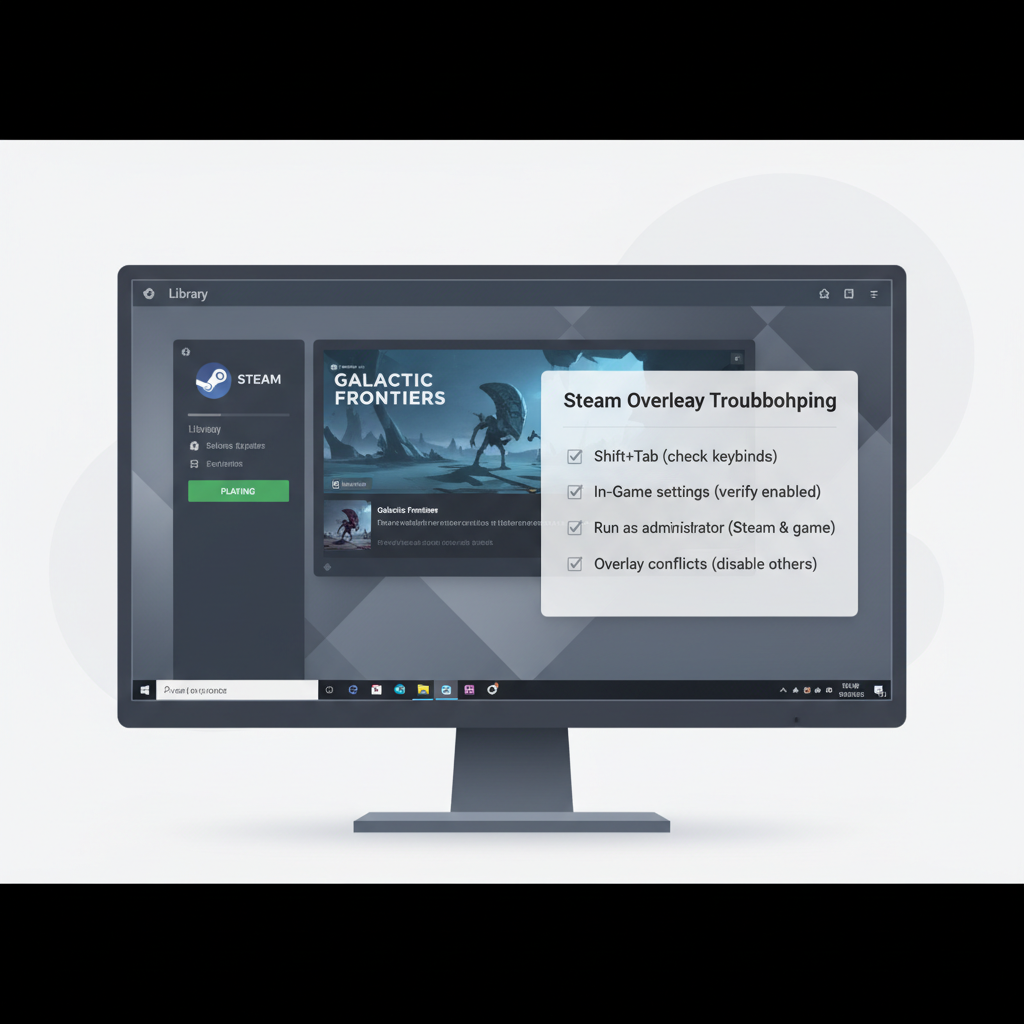
Quick diagnosis: what “not working” really means
Before you change settings, pin down what you see. “Overlay not working” can mean different failures, and each points to a different fix.
- Nothing happens when you press Shift+Tab: commonly disabled overlay, hotkey conflict, or permissions.
- Overlay opens then instantly closes: often an overlay conflict (Discord, GeForce Experience, Xbox Game Bar) or a rendering/API issue.
- Overlay works in some games, not others: game-specific settings, anti-cheat blocks, or launch options.
- Overlay opens but is blank/black: GPU driver issues, hardware acceleration quirks, or corrupted web cache.
According to Valve (Steam Support), the Steam Overlay depends on the Steam client and per-game settings, so checking both the global and game-level toggle is a sensible first move before deeper troubleshooting.
Fast path table: symptom → likely cause → first fix
Use this as a quick route map. You can still follow the full steps after, but this cuts the noise.
| Symptom | Most likely causes | Try this first |
|---|---|---|
| Shift+Tab does nothing | Overlay disabled, hotkey remapped, Steam not elevated | Enable overlay globally + per-game, check hotkey, run Steam as admin |
| Overlay flashes then closes | Overlay conflicts, fullscreen quirks | Disable other overlays, switch to borderless window |
| Works in other games | Anti-cheat, game launch options, Vulkan/DX mode | Remove launch options, test DX11/DX12 toggle, check anti-cheat notes |
| Blank/black overlay window | Driver/web cache issue, hardware acceleration | Update GPU driver, clear Steam web cache, toggle hardware acceleration |
Core fixes that solve most cases (do these in order)
If you want the highest success rate with the lowest risk, start here. The idea is to fix the common configuration issues before you change anything “deep.”
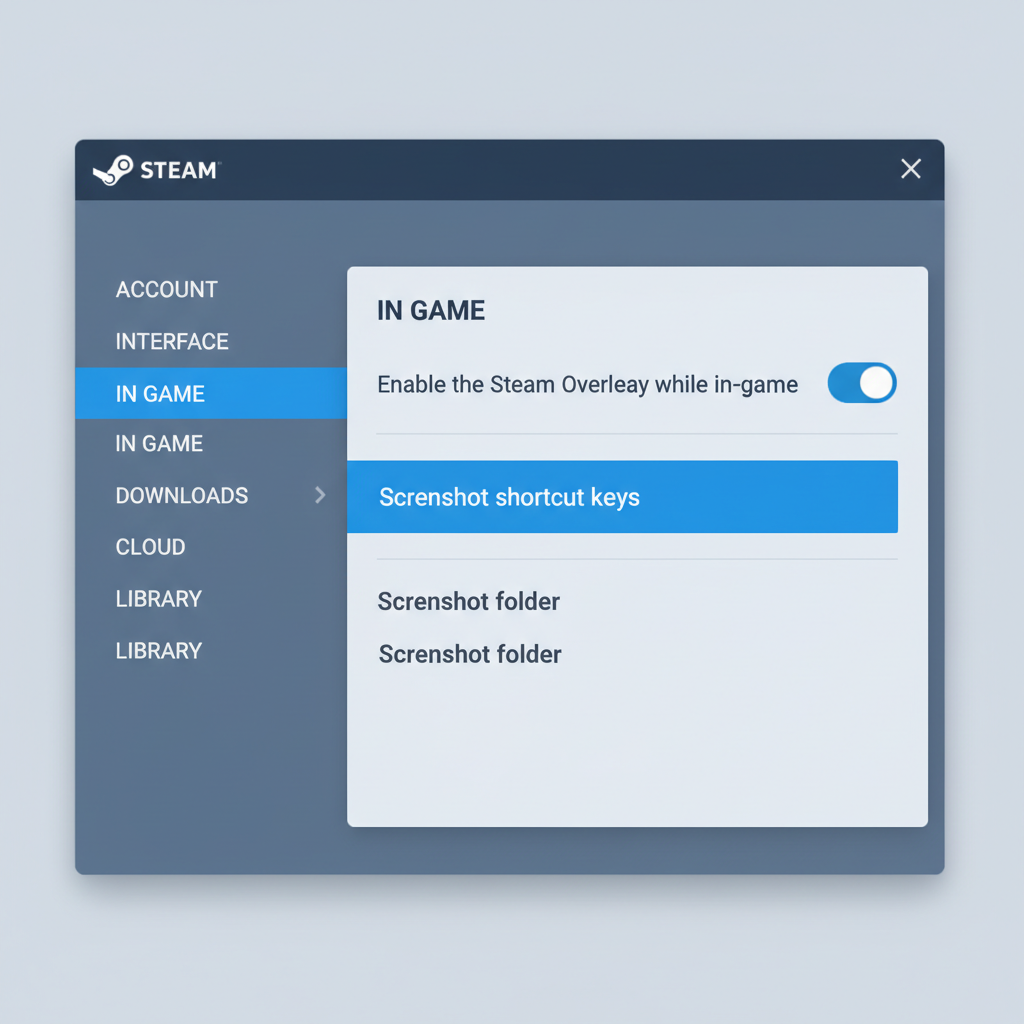
1) Enable Steam Overlay globally
- Open Steam → Settings → In Game
- Turn on Enable the Steam Overlay while in-game
- Confirm the Overlay shortcut key is what you expect (default Shift+Tab)
If you’re searching how to fix steam overlay not working, this checkbox is boring but it’s the #1 “it was off the whole time” culprit—especially after settings resets or multi-account PCs.
2) Enable Steam Overlay for the specific game
- Steam Library → right-click the game → Properties
- Under General, ensure Enable the Steam Overlay while in-game is on
Some titles behave differently after updates, and a per-game toggle can end up off even if global settings look fine.
3) Run Steam with the right permissions (admin mismatch matters)
This one feels oddly specific, but it’s real: if the game runs as administrator and Steam does not, the overlay may fail to inject.
- Close Steam completely
- Right-click Steam → Run as administrator
- Launch the game again and test Shift+Tab
If this fixes it, the cleaner long-term approach is to avoid forcing admin on the game unless needed, because mismatched elevation tends to cause side effects with overlays.
4) Restart Steam properly (not just closing the window)
- Steam → Exit (or right-click Steam tray icon → Exit)
- Open Task Manager and confirm Steam is not still running
- Re-launch Steam, then the game
A stuck SteamWebHelper process can keep overlay components in a weird state, especially after sleep/hibernate.
Fix overlay conflicts (Discord, NVIDIA, Xbox Game Bar, MSI Afterburner)
When people ask how to fix steam overlay not working, the sneaky answer is often “another overlay won.” It’s not personal—multiple apps try to hook the same rendering pipeline.
- Discord Overlay: User Settings → Game Overlay → disable for the game (or globally for testing)
- NVIDIA GeForce Experience: disable In-Game Overlay (Share)
- Xbox Game Bar: Windows Settings → Gaming → Xbox Game Bar off (test)
- MSI Afterburner / RivaTuner: pause overlay or add an application profile to exclude the game
Tip that saves time: disable conflicts one at a time and test, so you know what actually caused it. Otherwise you “fix” it and later re-enable everything, and the problem returns.
Display mode, graphics API, and launch options (common game-specific blockers)
If the overlay works in other titles, concentrate on how that specific game runs.
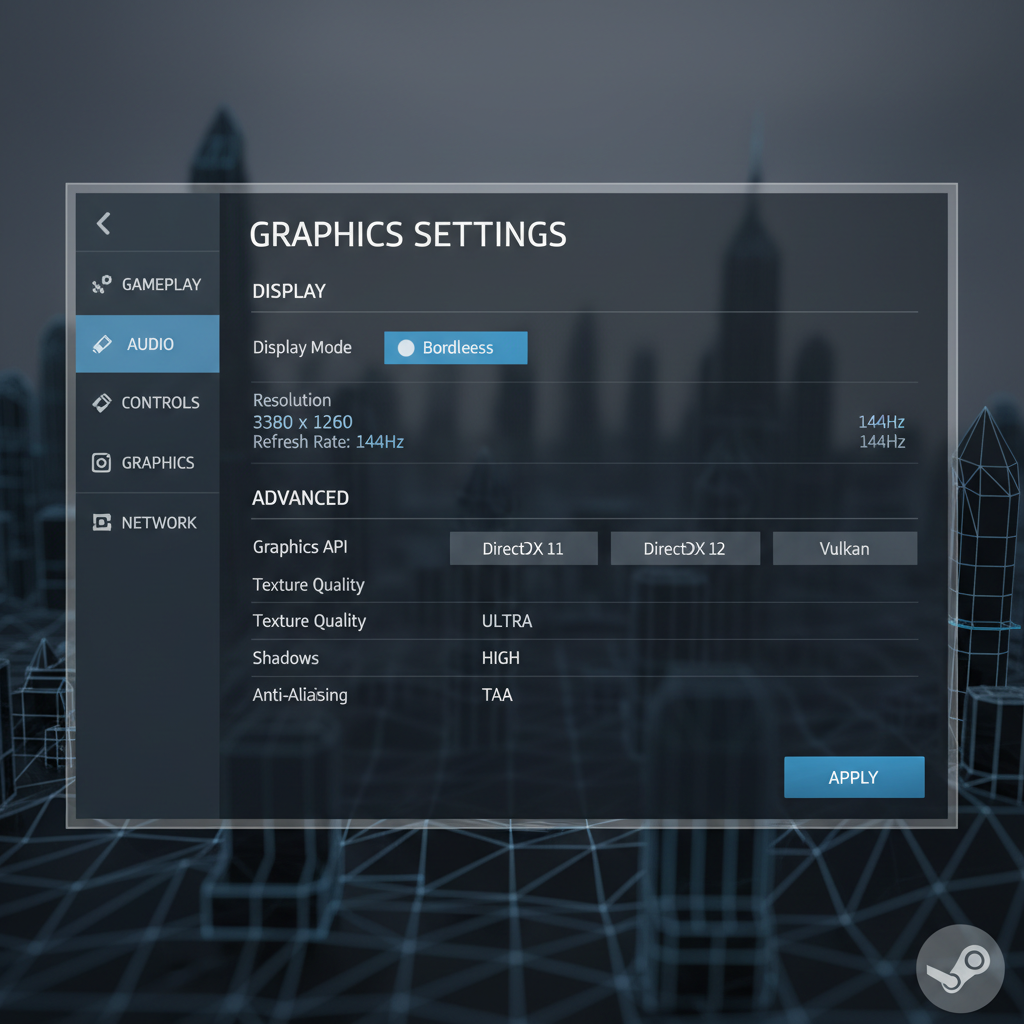
Switch fullscreen mode
- Try Borderless Windowed first
- If you already use borderless, test Exclusive Fullscreen
Some engines handle overlays more reliably in borderless, especially when multiple monitors and HDR are involved.
Check Vulkan/DX launch options and remove “tweaks” temporarily
- Library → right-click game → Properties → Launch Options
- Clear the box for testing (remove custom flags like -vulkan, -dx11, -fullscreen, third-party injectors)
Performance flags are great until they change the rendering path the overlay expects. Test default settings, then add flags back one by one.
Anti-cheat and competitive titles
Some anti-cheat systems restrict overlays or behave inconsistently across updates. That doesn’t always mean the overlay is “blocked,” but it can mean injection fails. In these situations, check the game’s support pages and Steam community discussions for known conflicts, and keep expectations realistic.
Repair Steam components: cache, GPU drivers, and file integrity
If settings look correct and conflicts are ruled out, the next layer is “Steam works, but the overlay component is sick.” These steps are safe and reversible in most cases.
Clear Steam web cache (helps blank overlay/browser issues)
- Steam → Settings → In Game (or Web Browser, depending on client version)
- Use Delete Web Browser Data (or clear cache options available)
The overlay uses embedded web components for parts of its UI, so a corrupted cache can show up as a black/blank overlay window.
Verify game files
- Library → right-click game → Properties → Installed Files → Verify integrity of game files
This won’t fix every overlay issue, but it can resolve missing hooks or broken binaries after a patch.
Update GPU drivers (and consider a clean install if you’re stuck)
Outdated or unstable drivers can cause overlay injection and rendering problems, particularly after major Windows updates. If you recently updated and things got worse, a clean driver reinstall may help, but it’s also where you should slow down and follow vendor guidance.
According to NVIDIA and AMD support documentation, keeping graphics drivers current is a common baseline step for stability and compatibility in PC games and overlays.
Self-check checklist: confirm you’re not fighting a “simple” blocker
- You’re not in Big Picture or controller mode with a remapped shortcut (test with keyboard)
- Steam is online and you’re not in Offline Mode during a weird session
- Steam Input overlays or controller layouts aren’t intercepting inputs
- Keyboard layout isn’t changing the shortcut (try rebind overlay hotkey)
- Third-party capture tools (OBS game capture, ReShade, Overwolf) are not hooking first
When you’re troubleshooting how to fix steam overlay not working, the fastest win is often changing one variable, testing, then moving on. Bulk changes feel productive but create mystery fixes you can’t repeat.
When to escalate (and what to send support)
If you’ve tried the basics, disabled other overlays, and tested different display modes, you’re in “edge case” territory. At that point, escalating makes sense.
- Contact Steam Support if the overlay fails across many games, or Steam UI behaves strangely outside games.
- Contact the game’s support if the overlay only fails in one title, especially with anti-cheat.
Helpful info to include: Windows version, GPU model + driver version, whether Discord/NVIDIA overlays run, game display mode, and whether Steam and the game run with admin permissions. It’s not glamorous, but it speeds up real troubleshooting.
Key takeaways you can act on today
- Check both overlay toggles: global Steam setting and the per-game property.
- Match permissions: don’t run the game as admin while Steam isn’t, or the overlay may not attach.
- Kill overlay conflicts one at a time, test, then decide what to keep enabled.
- Try borderless window and remove launch options to rule out rendering-path issues.
- Repair layer: clear Steam web cache, verify files, update GPU drivers.
If you want a simple sequence: enable overlay → per-game overlay → admin mismatch check → disable other overlays → borderless window → clear cache and verify files. In most setups, one of those steps restores it without drama.
FAQ
Why is Steam Overlay not working only in one game?
That usually points to a game-specific issue: anti-cheat behavior, a particular graphics API mode (DX12/Vulkan), or launch options. Resetting launch options and testing borderless windowed mode is a good first pass.
How do I fix Steam Overlay not working if Shift+Tab is used by another app?
Change the overlay shortcut in Steam Settings → In Game, then retest. Also check apps that register global hotkeys, because they can intercept the combo before the game sees it.
Does running Steam as administrator help the overlay?
It can, mainly when there’s a permissions mismatch. If the game runs elevated and Steam doesn’t, the overlay may fail. Try admin as a test, then decide whether you want to keep that setup.
Can Discord or NVIDIA overlay break Steam Overlay?
Yes, conflicts are common because overlays hook similar graphics layers. Disabling Discord Overlay or NVIDIA In-Game Overlay for a quick test often reveals the culprit.
How to fix steam overlay not working after a Steam update?
Start with a full Steam exit and relaunch, then re-check the global/per-game overlay toggles. If the overlay opens but looks blank, clearing the Steam web cache is worth trying.
Will verifying game files fix the Steam overlay?
Sometimes. It helps when a game patch or local corruption breaks components Steam expects. It’s low risk, but not as high-yield as fixing settings and overlay conflicts.
Why does the overlay open but show a black screen?
That can happen with driver issues or corrupted cache in Steam’s embedded web components. Update your GPU driver and clear Steam’s web/browser cache, then test again.
If you’re still stuck and you’d rather not spend another hour toggling settings, consider writing down your symptom, your display mode, and which overlays you run, then work through the table above like a checklist—it’s often the quickest way to pinpoint the one change that actually fixes your setup.