
how to fix steam download stopping and starting usually comes down to one of three things: Steam’s own throttling behavior, your network stability, or your disk struggling to keep up with unpacking and writes.
If you’ve watched the progress bar creep forward, freeze, then jump again, you’re not alone. Steam downloads aren’t always “pure downloading” either, a lot of the time Steam is verifying, decrypting, or writing chunks to disk, and that can look like a stop-and-start loop even when nothing is “broken.”
The goal in this guide is simple: help you identify which category you’re in, then apply fixes that actually match the cause. No “do everything” checklist unless you really need it.
Why Steam downloads stop and start (what’s really happening)
Steam can appear to pause even when it’s doing legitimate work. The trick is separating normal behavior from a problem worth fixing.
- Disk write or unpack bottleneck: Steam often downloads compressed data, then unpacks and writes it. On slower HDDs, or when the drive is near full, the “download” graph may drop to 0 while disk activity spikes.
- Unstable network or Wi‑Fi interference: Packet loss and fluctuating latency can cause Steam to renegotiate connections and resume in bursts.
- Bad download region or congested CDN route: Your selected Steam region may not be the best path at that moment.
- Bandwidth limits or scheduling: A hidden cap, or a router/ISP shaping traffic during peak hours, can create a pulsing pattern.
- Antivirus or firewall scanning: Real-time protection can slow file writes enough that Steam repeatedly waits on disk I/O.
According to Valve (Steam Support)... download speeds and consistency can vary based on region selection, local network conditions, and disk performance during installs, which lines up with what most people see in the real world.
Quick self-check: figure out what category you’re in
Before changing settings, take two minutes and observe. You’ll save yourself a lot of random tinkering.
Look at these signs while a download “pauses”
- Disk usage jumps high (Task Manager shows active time near 100%): likely unpack/write bottleneck.
- Network drops to 0 and disk stays low: more likely network, region, or Steam throttling.
- Only happens on Wi‑Fi but not on Ethernet: interference or router issues.
- Only certain games (big, frequently updated titles): more background patching/unpacking behavior.
- Only at certain times (evenings/weekends): congestion or ISP traffic management may be involved.
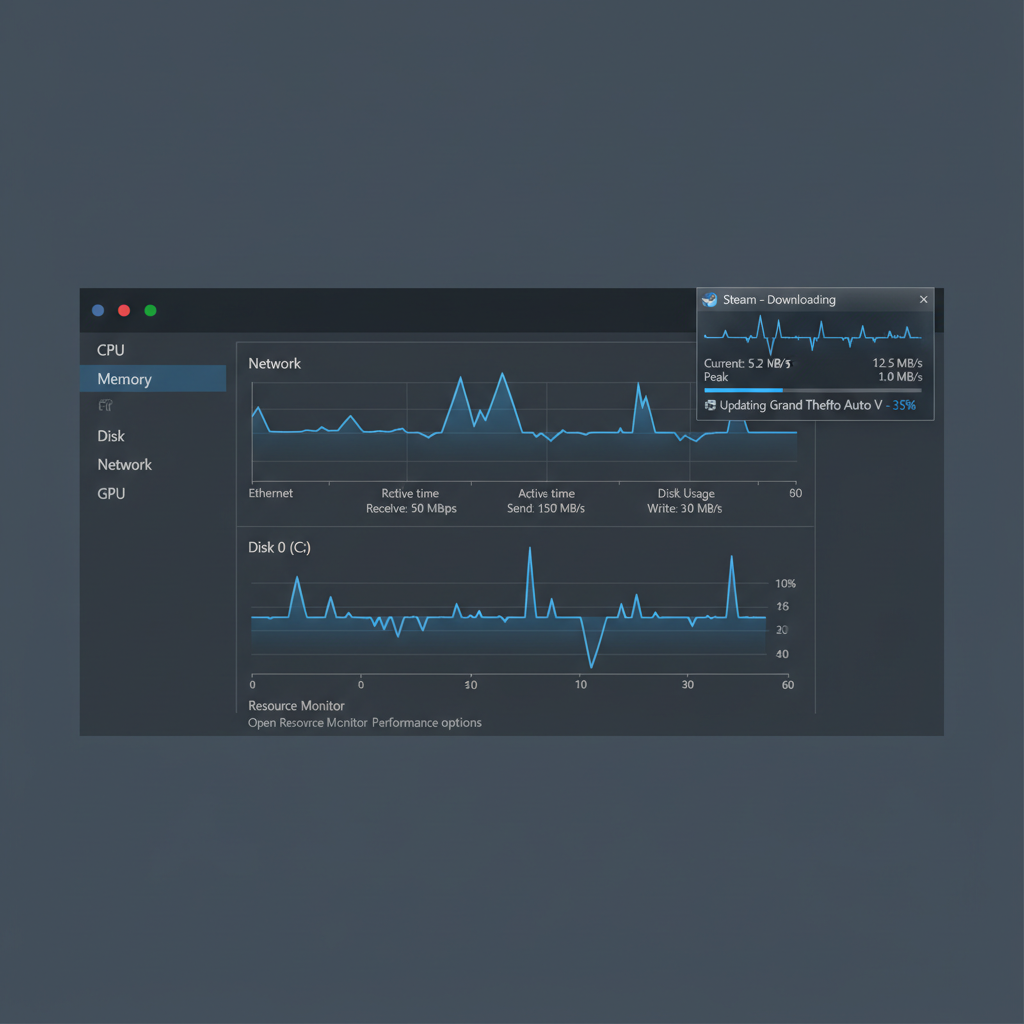
If you want a fast rule: when the “download” stops but the drive is busy, Steam is often working locally, not “stuck.” When both stop, troubleshooting makes more sense.
Fixes inside Steam that solve most stop-and-start issues
These are the highest-leverage changes because they address common Steam-side causes without touching your system.
1) Change Download Region (it matters more than people expect)
Go to Steam > Settings > Downloads > Download Region, pick a nearby major city, then restart Steam. If you already use the closest region, try the next nearest one.
Congestion can be regional and time-dependent, so this fix is worth retrying at different hours.
2) Clear the download cache
In the same Downloads menu, choose Clear Download Cache. You’ll need to sign in again after Steam restarts.
- This can help when your download gets “sticky” at the same percentage.
- It’s also useful after router changes, VPN use, or interrupted updates.
3) Check bandwidth limits and throttles
In Settings > Downloads:
- Confirm Limit bandwidth to is not set too low.
- If you share internet at home, set a reasonable cap rather than unlimited, sometimes stable is better than spiky.
- Temporarily disable Throttle downloads while streaming if you use Remote Play or broadcasting.
4) Pause/resume once, then restart Steam (simple, but often effective)
A single pause/resume can rebuild the transfer state. If that fails, fully exit Steam (not just minimize), then reopen. This is surprisingly effective when Steam’s download worker gets into a weird state.
Network-side steps (when the connection is the culprit)
If your network graph collapses during pauses and disk activity stays low, focus here.
Prefer Ethernet, at least for big installs
Wi‑Fi can be fine, but intermittent stops often trace back to signal quality, channel congestion, or mesh handoffs. If you can plug in for an hour, do it.
Restart the router/modem, and check for “smart” features
- Power cycle the modem and router (wait 30–60 seconds before powering back on).
- Disable or tune QoS / traffic shaping if it’s incorrectly prioritizing other devices.
- If your router has “game accelerator” features, test with them off, some implementations behave unpredictably.
According to the Federal Communications Commission (FCC)... home Wi‑Fi performance can vary based on interference, distance, and network congestion, which is why a stable wired connection often improves consistency.
Try DNS changes only if you’re seeing slow lookups or poor routing
Switching DNS is not magic, but it can help in some setups. If you try it, use reputable resolvers (for example, your ISP DNS or well-known public DNS services), then retest the same download.
Avoid VPNs for troubleshooting (unless you’re testing routing)
A VPN can stabilize a bad route, but it can also reduce throughput or trigger more frequent reconnects. For diagnosis, turn it off first, then only re-enable to compare.
Disk and PC performance fixes (the “it pauses at 0 B/s but my drive is screaming” scenario)
If Steam download stopping and starting lines up with high disk activity, you’re probably waiting on writes, verification, or unpacking.
Use an SSD if possible (or move the library)
Moving large, actively patched games from an HDD to an SSD can reduce the stop-start pattern dramatically. In Steam you can add a new library folder and move installs.
- Steam > Settings > Storage to manage drives and move games.
- Keep at least 10–20% free space on the drive when possible, cramped disks tend to slow down.
Exclude Steam library folder from real-time scanning (carefully)
Antivirus scanning can slow the constant write/unpack cycle. If you trust your game sources and want to test, add an exclusion for your Steam library directory. If you’re unsure, keep protection on and test other fixes first.
According to Microsoft (Windows Security documentation)... antivirus exclusions can reduce scanning overhead for trusted locations, but they should be used carefully since they reduce inspection coverage.
Check for background disk hogs
- Windows Update downloads
- Cloud sync tools (OneDrive/Dropbox)
- Large file copies or video renders
If you want a clean test, pause those tasks for 15–30 minutes and retry the same Steam download.
A practical playbook: what to do in 10–20 minutes
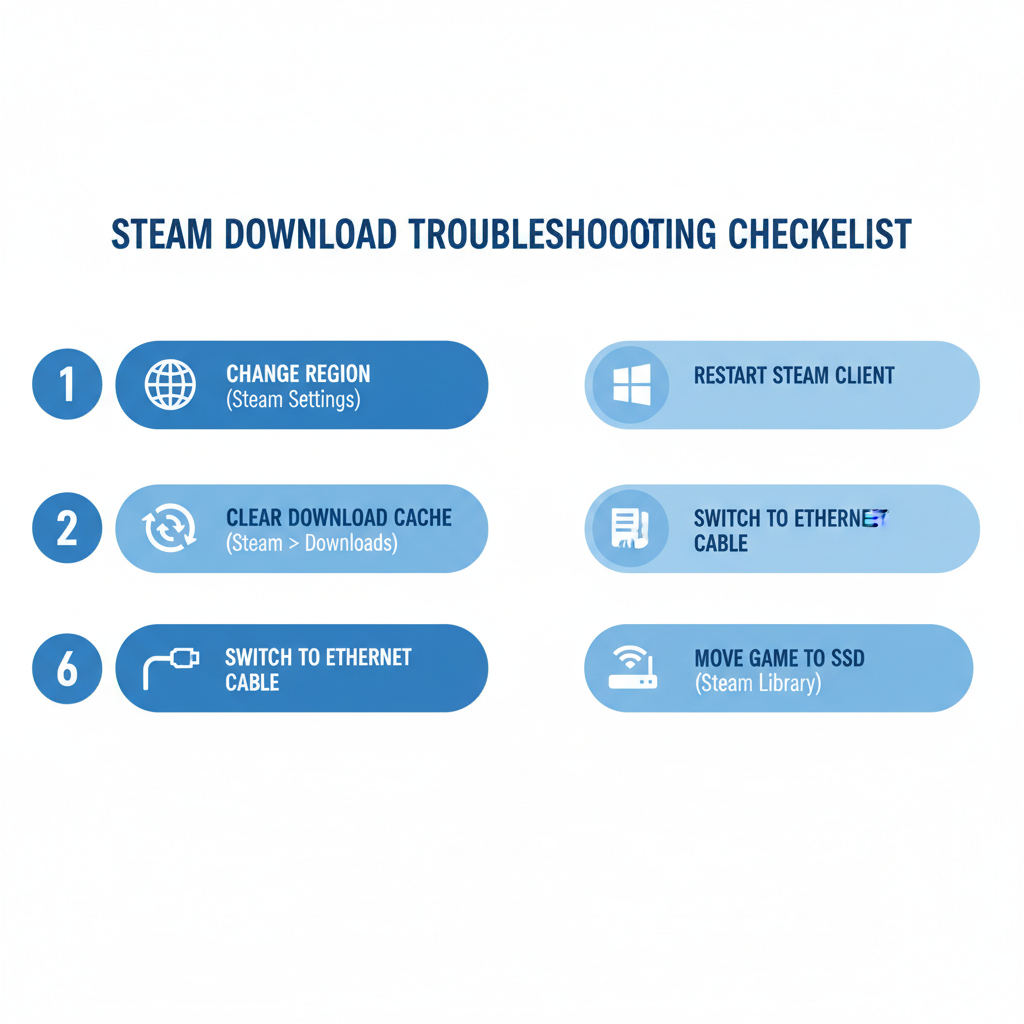
If you just want the fastest path to a stable download, run this in order and stop when the issue clears.
- Step 1: Watch Task Manager during a pause, decide “network” vs “disk.”
- Step 2: Change Download Region, restart Steam.
- Step 3: Clear Download Cache, sign back in.
- Step 4: If on Wi‑Fi, switch to Ethernet or move closer to the router.
- Step 5: Reboot router/modem.
- Step 6: If disk-bound, free space and consider moving the library to SSD.
Troubleshooting table: symptom → likely cause → best fix
This is the “skip the guesswork” section. Match what you see, then do the most relevant fix.
| What you notice | Most likely cause | What to try |
|---|---|---|
| Download hits 0 B/s but Disk usage spikes | Unpacking/writing bottleneck | Move to SSD, free space, reduce background disk load |
| Network drops to 0 and Disk stays low | Network instability or region congestion | Change region, reboot router, test Ethernet |
| Only happens on Wi‑Fi | Interference, weak signal, mesh roaming | Ethernet, adjust router placement, try 5 GHz or different channel |
| Stalls at same percent repeatedly | Cache/session hiccup | Clear download cache, restart Steam, verify free disk space |
| Slow/stop-start mainly at peak hours | Congestion or ISP shaping | Try off-peak, set reasonable bandwidth limit, test another region |
Common mistakes that waste time
- Assuming 0 B/s always means broken: often it’s disk work, especially on big installs.
- Changing 10 settings at once: you won’t know what helped, and you can accidentally add new issues.
- Over-trusting “speed booster” apps: many do nothing, some add VPN-like routing overhead.
- Ignoring storage health: a failing HDD can behave like a “network problem” because writes stall.
If you suspect drive health issues (clicking HDD sounds, frequent file errors, very slow writes), it’s smarter to back up and run basic disk diagnostics, and consider professional help if the drive contains important data.
Key takeaways (keep this short and useful)
- Watch disk vs network during pauses, it tells you where the real bottleneck sits.
- Download Region + Clear Cache fix a large share of stop-start behavior.
- SSD and free space matter more than people expect for Steam installs.
- Ethernet beats Wi‑Fi when you need consistency, even if your Wi‑Fi “speed test” looks fine.
Conclusion: get stable first, then chase speed
If you’re still wondering how to fix steam download stopping and starting, start by deciding whether Steam waits on your disk or your connection, then apply one targeted change at a time. In practice, changing the download region and clearing the cache solves a lot, and disk-bound setups improve fast once the library sits on an SSD with breathing room.
If you want a simple action plan: run one download while watching Task Manager, switch region, clear cache, then test Ethernet. That sequence gives you clarity without turning your PC into a science project.
FAQ
- Why does Steam download speed drop to 0 but my disk usage is 100%?
Steam may be unpacking or verifying data, and your drive becomes the limiting factor. This is common on HDDs or nearly full drives, and it can look like the download “stops” even though install work continues. - Does clearing Steam download cache delete my games?
No, it typically clears temporary download data and resets the download session. You’ll usually need to sign in again, so make sure you know your credentials. - Which Steam Download Region should I pick in the US?
Usually a nearby major city works best, but congestion changes. If your closest region performs poorly, try the next closest one and retest the same download for consistency. - Can my antivirus make Steam downloads stop and start?
Yes, real-time scanning can slow the write/unpack process, especially with large game files. If you test exclusions, do it carefully and only for trusted library locations. - Is Wi‑Fi always the reason Steam pauses?
Not always. Wi‑Fi can cause instability, but many pauses come from disk bottlenecks. Checking whether disk activity spikes during the pause prevents misdiagnosis. - Should I use a VPN to fix Steam download stopping and starting?
Sometimes a VPN helps if your routing to Steam servers is poor, but it can also add overhead and reduce stability. For troubleshooting, it’s better to test without a VPN first, then compare. - When should I contact my ISP or a technician?
If multiple devices show frequent dropouts, you see repeated modem resets, or wired Ethernet still cuts out, it may be an ISP line issue. If your drive shows errors or abnormal slowdowns, a repair shop can help diagnose hardware safely.
If you’re still stuck after region/cache changes and a wired test, it may help to document what you see (disk vs network behavior, time of day, whether only certain games fail) and use that to guide deeper troubleshooting, it’s often the quickest way to avoid trial-and-error.