
how to refund games on steam is mostly straightforward, but people still get stuck on the same two questions: “Am I eligible?” and “Where exactly do I click so Steam doesn’t reject it?”
This matters because a refund request usually succeeds or fails based on small details you can control, like playtime, purchase timing, and whether you’re refunding DLC or in-game items. If you guess, you often waste days waiting for an answer.
Below is a practical guide to Steam’s refund rules, plus a quick eligibility checklist, a step-by-step walkthrough, and a few real-world edge cases where the standard rules don’t feel so standard.
Steam refund rules (the core policy in plain English)
Steam’s baseline refund policy is commonly summarized as “within 14 days and under 2 hours of playtime,” but the fine print is where decisions happen, especially with DLC, pre-orders, or bundles.
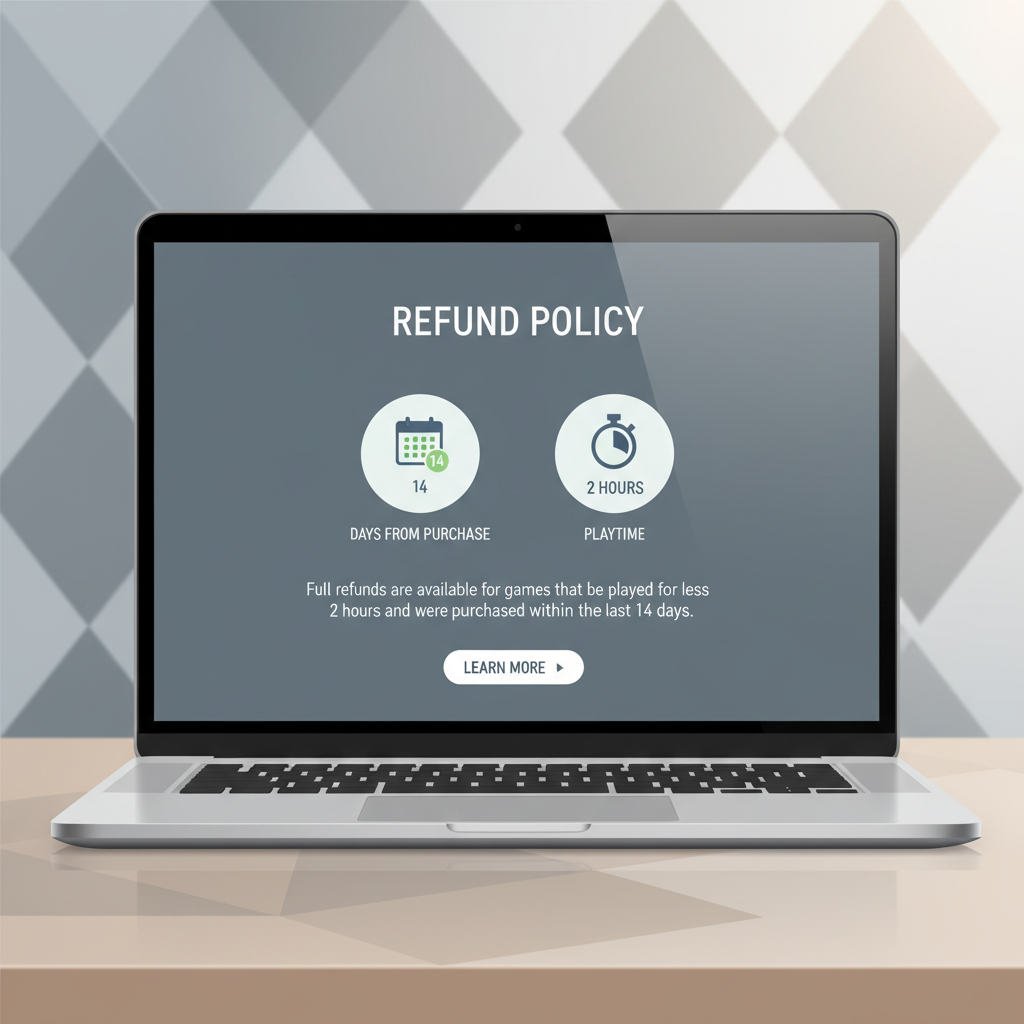
According to Valve (Steam Support), you can request a refund for nearly any purchase on Steam as long as you stay within the stated time and usage limits, and Valve may still consider requests outside those limits depending on the situation.
Typical eligibility rules
- Games: Usually refundable if requested within 14 days of purchase and with less than 2 hours played.
- DLC: Often refundable if the base game playtime remains under 2 hours since the DLC purchase, and the DLC has not been “consumed” or irreversibly used.
- In-game purchases (Valve games): Often refundable within 48 hours if the item has not been consumed, modified, or transferred. For third-party games, it may vary.
- Pre-orders: Typically refundable any time before release, and after release it usually follows the same time and playtime limits.
- Steam Wallet funds: Wallet top-ups can be refundable in certain cases if unused, but eligibility can be more restrictive than a normal game refund.
Where refunds can get tricky
- Bans and abuse flags: Frequent refunds can raise scrutiny, even if you’re inside the rules. That does not mean you can’t refund, it just means “pattern” can matter.
- Third-party keys and external purchases: Steam typically cannot refund purchases made outside Steam (even if you redeem the key on Steam).
- Game time vs. “open time”: If you left the game running, Steam may still count it as playtime. That surprises people.
Quick self-check: are you likely to get approved?
If you want a fast “yes/no/maybe,” use this list before you file. It saves time and helps you write a cleaner request.
- Purchase date: Is it within 14 days?
- Playtime: Is total playtime under 2 hours? If it’s close, check whether you left it running in the background.
- Refund reason: Is it something Steam can verify quickly (crashes, performance issues, accidental purchase)?
- Content type: Game vs DLC vs in-game item vs subscription. The category changes the rule.
- Payment method: Credit card, PayPal, Steam Wallet, etc. Some methods process faster than others.
If you hit both “under 14 days” and “under 2 hours,” approvals are common. If you miss one of them, you’re in “explain your situation” territory, and wording starts to matter more.
How to request a refund on Steam (step-by-step)
When people ask how to refund games on steam, they often already found the Support page, but they choose the wrong menu path and end up in a generic troubleshooting flow. Use this route instead.

On desktop (Steam client or browser)
- Go to Steam Support.
- Choose Purchases.
- Select the game or item you want to refund.
- Pick the issue that best matches your situation.
- Click I’d like to request a refund.
- Choose refund to your Steam Wallet or refund to original payment method (if available).
- Write a short reason, then submit.
On mobile (Steam app)
- Open the Steam app, go to Support.
- Tap Purchases and select the transaction.
- Follow the refund prompts and submit your request.
What to write in the refund reason (keep it simple)
Short beats emotional. Support agents scan for clear, verifiable points, and a clean request tends to move faster.
- Performance/technical: “Game crashes on launch on my PC. Tried verifying files and reinstalling.”
- Gameplay mismatch: “Not what I expected after trying it under 2 hours.”
- Accidental purchase: “Purchased by mistake, requesting refund immediately.”
Refund timing, processing, and where the money goes
Even when Steam approves fast, the money does not always appear fast. That delay is usually your payment provider, not Steam dragging its feet.
According to Valve (Steam Support), approved refunds are typically processed within about a week, and some payment methods may take longer to show the credit.
Refund destination: Steam Wallet vs original payment
- Steam Wallet: Often the fastest “usable funds” option inside Steam, useful if you plan to buy something else.
- Original payment method: Better if you want the cash back, but your bank/card issuer may take extra business days.
Practical timeline table
| Step | What happens | Common wait |
|---|---|---|
| Submit request | Steam receives it and queues review | Minutes to 24 hours |
| Approval/denial | Automated or agent review | Same day to a few days |
| Refund processed | Steam sends funds back | Often within a week |
| Funds visible | Wallet credit or bank/card posting | Wallet is usually faster; banks can take longer |
Common edge cases: DLC, bundles, gifts, early access, and subscriptions
This is where many “I did everything right” complaints come from. The rules are similar, but the objects you refund behave differently.
DLC refunds
- If the DLC was purchased for a game you already played a lot, approval can be harder.
- If the DLC includes consumables or progress-based unlocks, it may be considered used.
Bundles
- Some bundles require refunding the whole bundle, not one item.
- If the bundle discount depends on keeping certain items, Steam may block partial refunds.
Gifts
- If you bought a game as a gift and it has not been redeemed, you can often request a refund.
- If it has been redeemed, the recipient may need to initiate the refund depending on Steam’s flow and eligibility.
Early Access
Early Access follows the same general refund structure, but the “I thought it would be finished” argument rarely helps by itself. Better reasons are crashes, major technical issues, or simple dissatisfaction within the time limits.
Subscriptions and recurring charges
Some subscriptions can be cancelled, and refunds can depend on whether the current billing period has been used. If you’re unsure, treat it as “case-by-case,” file the request, and keep the explanation factual.
If you’re outside the limits: what still works (sometimes)
When you miss the typical window, you’re no longer “checking boxes,” you’re asking for discretion. That can still work, but only in certain situations.
- Major technical failure: The game never really worked on your system, and you can describe what you tried.
- Accidental purchase with quick action: The longer you wait, the weaker this becomes.
- Misleading functionality claims: If key features do not function as described, a clear explanation can help.
What tends to backfire is a long story, threats, or arguments about “fairness.” Steam Support is more responsive to a short timeline and what you tried, especially if the request looks reasonable.
Key takeaways (so you don’t have to reread everything)
- Most approvals follow the 14-day, under-2-hours baseline, so confirm those numbers before you submit.
- Use the Support > Purchases path to avoid ending in generic troubleshooting.
- Keep the reason short and specific, and mention basic troubleshooting if it’s a technical issue.
- DLC, bundles, gifts, and subscriptions follow extra rules, so check the purchase type before you assume it works like a normal game.
Conclusion: a simple refund plan you can follow today
If you’re trying to figure out how to refund games on steam, start by checking purchase date and playtime, then file through Support > Purchases with a short, concrete reason. If you’re outside the usual limits, still submit a request, but treat it as a discretionary review and keep your explanation factual.
If you want the most practical next step, open Steam Support now, find the exact transaction, and submit the request while your timeline is still favorable.
FAQ
How long do Steam refunds take in the U.S.?
Steam may approve quickly, but your bank or card issuer can add extra processing days. Steam Wallet refunds often become usable sooner than a card refund.
Can I learn how to refund games on steam if I played more than 2 hours?
You can still submit a request, but it becomes less predictable. Requests tied to major technical problems or unusual circumstances tend to be more compelling than “I finished it and changed my mind.”
Will Steam refund a game if it’s on sale right after I bought it?
Price changes happen often. Steam may refund if you meet the normal eligibility rules, and you can repurchase at the lower price, but outcomes can vary depending on timing and account history.
Can I refund DLC separately from the base game?
Sometimes, yes. It depends on whether the DLC has been consumed and how much you played the base game since buying that DLC.
Do I get refunded to my card or to Steam Wallet?
You typically can choose, but some payment types may limit options. If you plan to buy another game soon, Wallet credit can be more convenient.
Why did my Steam refund get denied even though I’m within 14 days?
The most common reason is playtime above the threshold or the purchase type being different than you assumed, like a bundle component, DLC usage, or an external key.
Can I refund a gifted game on Steam?
If the gift has not been redeemed, it’s often refundable. If it has been redeemed, Steam may require the recipient to initiate the refund flow, assuming eligibility.
If you’re running into a confusing edge case, like a bundle discount, DLC that counts as “consumed,” or a refund denial that doesn’t match your purchase details, it can help to gather screenshots of the transaction, playtime, and any error messages before contacting Steam Support so your follow-up stays focused and faster to review.