
how to fix low gpu usage in games usually comes down to one thing: the GPU isn’t the limiting part of your system in that moment, so it has no reason to run at high load.
That can feel backwards because you bought a strong graphics card and you’re still seeing choppy frames, stutter, or low FPS while GPU usage sits at 30–60%. The good news is that “low usage” is often a symptom you can diagnose with a few checks, not a mystery.
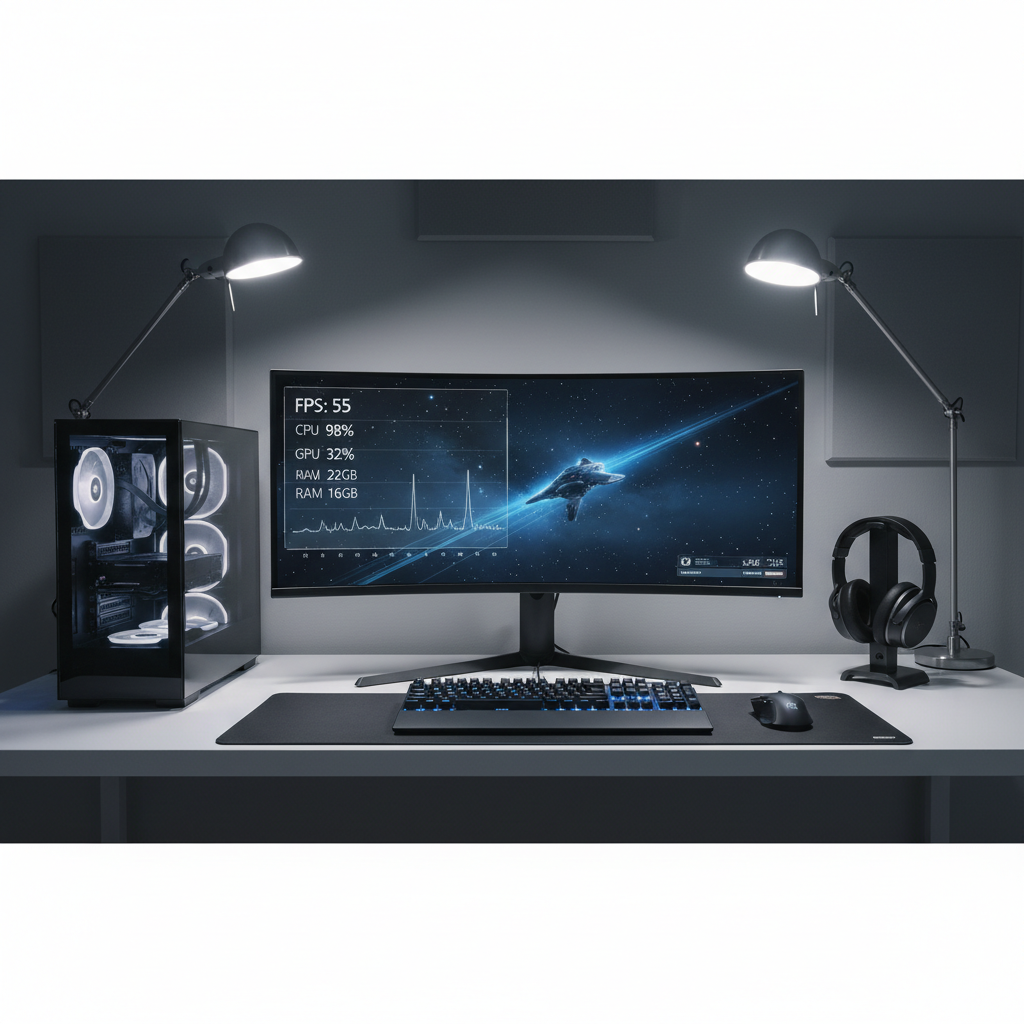
What this guide helps you do is separate harmless cases, like a frame cap or a light esport title, from the frustrating ones, like a CPU bottleneck, background tasks, driver quirks, or a misconfigured power plan. You’ll end with a short “do this next” list, not a pile of random tweaks.
What “Low GPU Usage” Actually Means (and When It’s Normal)
Low GPU usage is not automatically a problem. It simply means the game engine isn’t feeding your graphics card enough work per frame, or something else is slowing the pipeline.
- Normal: older games, competitive titles at 1080p low settings, or when you cap FPS to 60/120/144.
- Normal-ish: menus, cutscenes, or locations with heavy CPU simulation (crowds, physics, large battles).
- Worth fixing: you see low GPU usage and poor FPS, inconsistent frametimes, or stutter that doesn’t match your hardware.
According to NVIDIA, CPU performance can limit overall gaming performance in many scenarios, and the “bottleneck” can shift depending on resolution and settings. In plain English, at low resolutions or high frame rates, your CPU often becomes the ceiling.
Quick Diagnosis Checklist (5 Minutes, No Guessing)
Before changing settings, confirm what’s actually limiting performance. You need just three metrics: GPU usage, CPU usage (per-core), and RAM/VRAM usage.
Use a simple overlay
- Windows Task Manager (Performance tab) can show GPU usage, but it’s limited.
- Tools like MSI Afterburner + RivaTuner can show GPU usage, GPU clocks, CPU per-core load, VRAM, RAM, and frametime.
Read the signs
- One CPU core pinned at 90–100% while overall CPU looks “fine” → classic CPU bottleneck.
- GPU clock stuck low (not boosting) → power/thermal/driver issue, or laptop power limits.
- RAM near full and disk activity spikes → paging, which can cause stutter and low utilization.
- VRAM maxed → the game may downshift performance, cause stutter, or behave inconsistently.
- FPS is capped (in-game, driver, or RTSS) → GPU usage often drops by design.
If you only take one lesson from this section: don’t chase 99% GPU usage as a goal. Chase stable frametimes and expected FPS for your hardware tier.
The Most Common Causes (Ranked by How Often They Show Up)
In practice, most “why is my GPU asleep?” reports land in a few buckets. Here’s what tends to be behind low utilization when FPS feels wrong.
- CPU bottleneck: high FPS targets, 1080p, simulation-heavy games, older engines, or weak single-core performance.
- Frame caps and sync: V-Sync, FPS limiters, driver-level caps, or a monitor refresh mismatch.
- Power limits: Windows power plan, laptop running on battery, “Eco” modes, or GPU power management set too conservative.
- Thermal throttling: CPU or GPU hitting temperature limits and downclocking.
- Wrong GPU selected: laptops and desktops with integrated graphics sometimes run the game on iGPU.
- Driver or overlay conflicts: capture/overlay tools, corrupted driver installs, or unusual settings in the control panel.
- Memory pressure: not enough RAM, background apps, or VRAM-heavy texture settings.
Fixes That Usually Work (Step-by-Step by Scenario)
Below are fixes that map to the scenarios above. You don’t need all of them. Pick the track that matches your diagnosis.
If you’re CPU-bottlenecked
- Raise resolution or quality slightly (yes, raise). Going from 1080p to 1440p, or increasing GPU-heavy settings, can shift load to the GPU and smooth frametimes in some titles.
- Lower CPU-heavy settings: crowd density, view distance, foliage/LOD, physics, shadow distance, ray-traced GI with heavy CPU overhead (varies by game).
- Close background hogs: browsers with many tabs, game launchers doing updates, RGB suites, telemetry-heavy overlays.
- Enable XMP/EXPO in BIOS if your RAM is running at default JEDEC speeds; slow memory can hurt CPU-limited games.
According to Intel, memory configuration and CPU frequency behavior can influence gaming performance, especially in CPU-bound scenarios. You don’t need to overclock, but you do want the CPU and RAM to run as intended.
If you’re accidentally capping FPS
- Check the game’s FPS limiter, V-Sync, and any “battery saver” style options.
- Check NVIDIA Control Panel / AMD Software for global or per-game caps (Max Frame Rate, Chill, etc.).
- If you use RTSS, confirm you didn’t leave a cap on from another game.
A common tell: FPS sits exactly at 60/120/144 and GPU usage stays low and steady. That’s not broken, that’s a cap working.
If your PC is in a low-power mode
- Set Windows Power Mode to Best performance (Windows 11) or use a High performance plan where appropriate.
- On laptops, plug in power and switch to the vendor “Performance” profile.
- In NVIDIA Control Panel, set Power management mode for the game to Prefer maximum performance (use per-game, not necessarily global).
According to Microsoft, Windows power settings can affect device performance and power consumption. In gaming, that often shows up as clocks that never boost, then you wonder why utilization looks weird.
If the game is running on the wrong GPU (common on laptops)
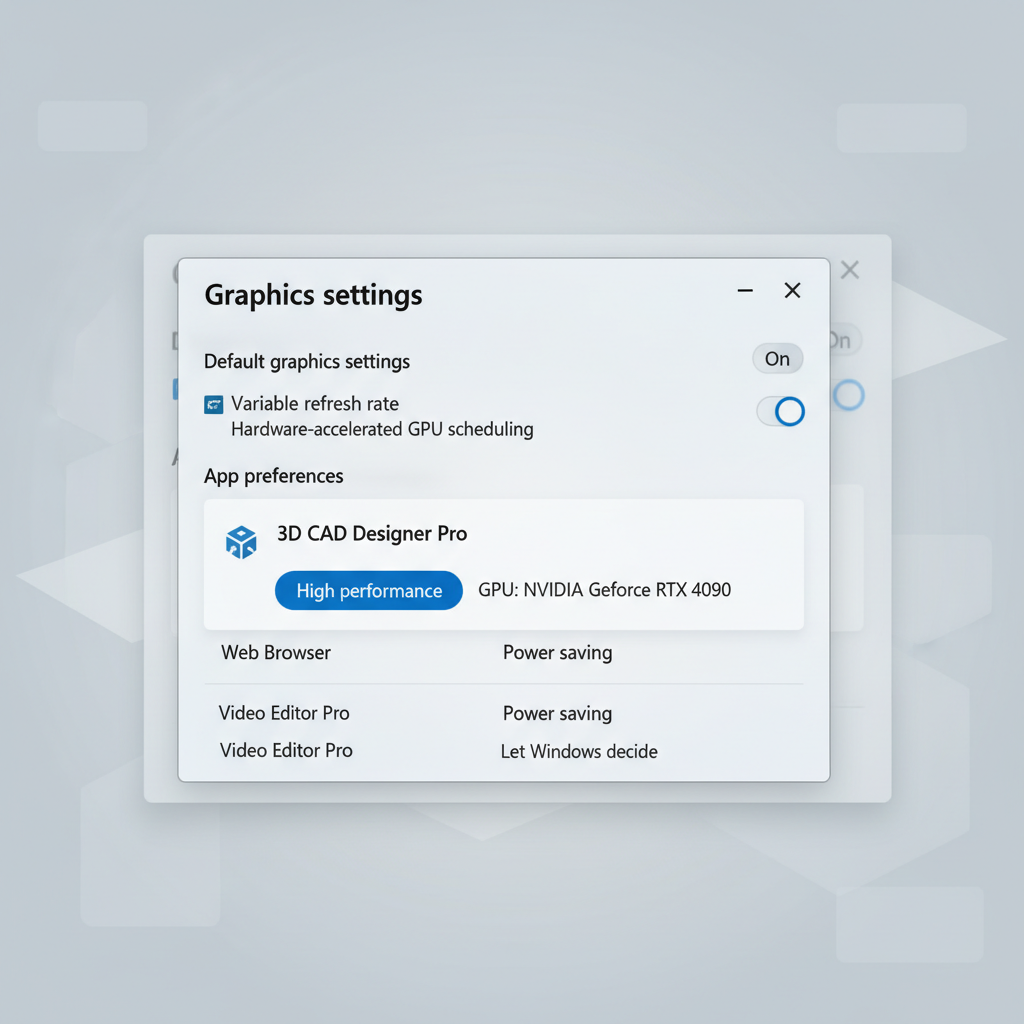
- Windows Settings → System → Display → Graphics → select the game → set to High performance.
- Confirm in Task Manager (Processes) that “GPU engine” points to the discrete GPU.
- On systems with MUX switches, consider “dGPU only” mode if you understand the battery trade-off.
If drivers or overlays are causing odd behavior
- Update GPU drivers from NVIDIA/AMD/Intel directly.
- If issues started after an update, try a clean reinstall. Many people use DDU, but follow instructions carefully because it can remove display drivers.
- Temporarily disable overlays: Discord, Steam, GeForce Experience, Xbox Game Bar, recording tools.
This is also where you check “oddball” toggles like forced anti-aliasing, forced low-latency modes, or unusual scaling settings in the driver panel.
If you suspect thermal throttling
- Watch CPU and GPU clocks under load; low utilization plus dropping clocks often points to heat or power limits.
- Clean dust, verify fans spin correctly, and check that your case airflow makes sense.
- On laptops, a cooling pad can help, but the bigger win is often using the correct performance profile.
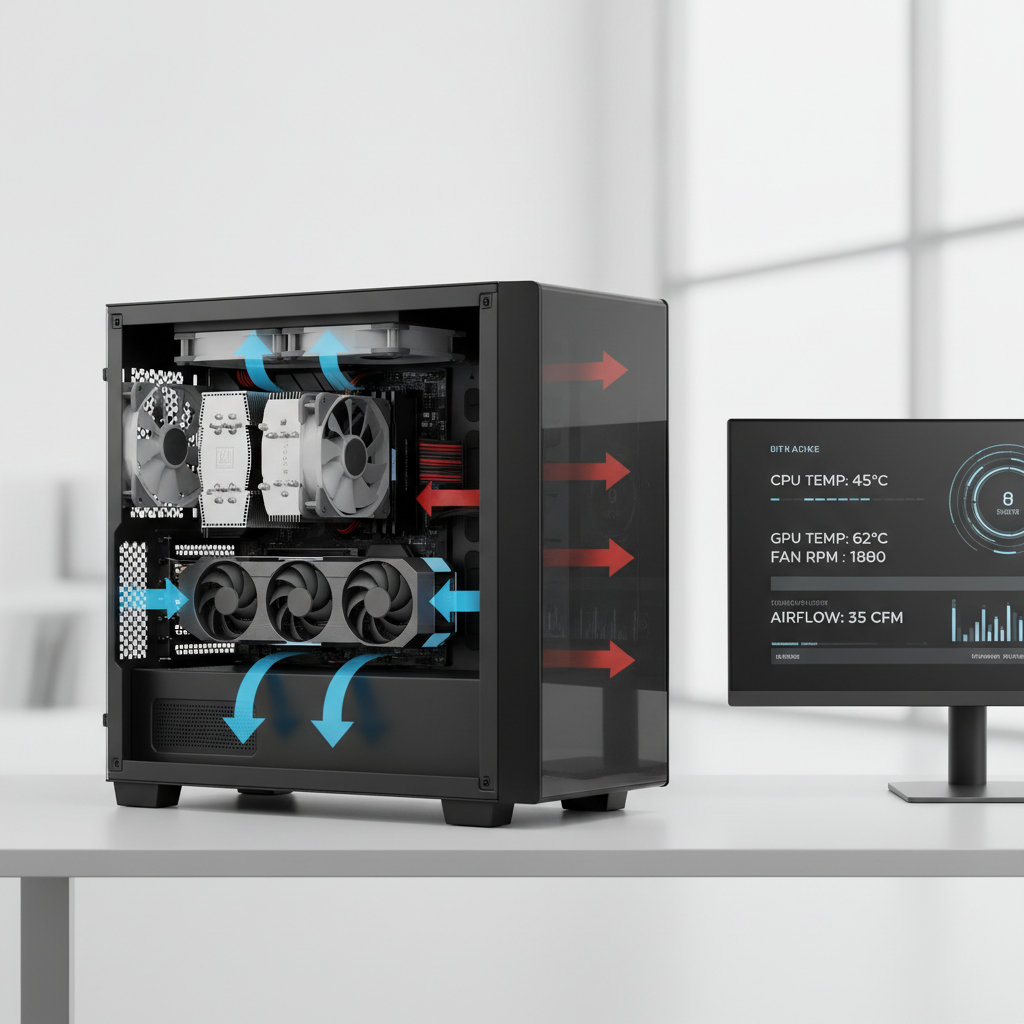
If temps look fine but clocks still won’t rise, you’re back to power limits, driver behavior, or an FPS cap.
One Table to Match Symptoms to Likely Fixes
If you want a quick “triage” view, this is the fastest way to decide what to do next.
| What you see | Most likely cause | What to try first |
|---|---|---|
| GPU usage 40–60%, FPS low, one CPU core near 100% | CPU bottleneck | Lower view distance/crowds, enable XMP/EXPO, close background apps |
| FPS locked exactly at 60/120/144, GPU usage low but smooth | Frame cap / V-Sync | Check in-game limiter, driver max frame rate, RTSS |
| GPU clock stays low, usage low, laptop on battery | Power saving | Plug in, switch to performance mode, Windows Best performance |
| Stutter + RAM nearly full + disk spikes | Memory pressure/paging | Close apps, lower textures, consider more RAM |
| VRAM maxed, hitching when turning | VRAM limit | Drop texture quality, reduce resolution or RT textures |
| Temps high, clocks drop during gameplay | Thermal throttling | Clean dust, improve airflow, adjust fan curves |
Practical “Do This Tonight” Checklist (Minimal Tweaks, Real Impact)
If you want a short action plan to address how to fix low gpu usage in games without turning your PC into a science project, this is the order that tends to pay off.
- Remove any FPS cap you forgot about, then test again for 5 minutes in the same in-game spot.
- Confirm the game uses the discrete GPU (Windows Graphics settings, Task Manager GPU engine).
- Switch to a performance power mode (especially laptops), then retest clocks and usage.
- Update GPU driver, and disable overlays for one test run.
- Adjust settings with intent: if CPU-limited, lower view distance/crowds; if VRAM-limited, lower textures; if you just want more GPU load, raise resolution.
Key point: change one thing, test, then keep or revert. Most people get stuck because they change five variables and can’t tell what helped.
Common Mistakes That Waste Time
- Chasing 99% GPU usage even when FPS is already stable; utilization is not a score.
- Only watching total CPU usage and missing a single saturated core.
- Cranking “low settings” for more FPS in a CPU-limited game, which can actually reduce GPU workload and make usage look worse.
- Ignoring memory; borderline RAM or VRAM can create stutter that looks like “GPU not working.”
- Global driver tweaks that affect every game; prefer per-game profiles so you don’t create new problems elsewhere.
When to Consider Professional Help (or Hardware Changes)
If you’ve worked through the checks and how to fix low gpu usage in games still feels unresolved, it might be time to step back and decide if this is configuration, a fault, or simply a hardware mismatch for your target FPS.
- Possible hardware limitation: you want 240 FPS at 1080p in CPU-heavy shooters, but your CPU can’t keep up.
- Possible stability issue: random driver crashes, artifacting, or sudden black screens; consider a reputable repair shop or the GPU vendor’s support.
- Power supply concerns: unexpected shutdowns under load can indicate PSU problems; if you’re unsure, ask a technician because power diagnostics can be risky if done incorrectly.
- Laptop constraints: many laptops have strict power and thermal budgets; sometimes the “fix” is accepting a slightly lower FPS cap for stable frametimes.
If you’re considering upgrades, prioritize the part that your overlay shows as the limiter, not the part with the most hype.
Conclusion: Aim for Stable Frametime, Not a Perfect Utilization Number
Low GPU usage becomes a real problem when it pairs with low FPS or messy frametimes, and in many cases the cause is upstream: CPU limits, FPS caps, power modes, or memory pressure. Start with measurement, match the symptom to the fix, and keep changes small so you can actually learn what helps.
If you want one next step, run a 10-minute test with a proper overlay, then apply the single fix that matches your strongest signal, that approach usually beats hours of random toggles.
FAQ
Why is my GPU usage low but CPU usage also looks low?
Often it’s because one or two CPU cores are maxed while the total CPU percentage stays moderate. Check per-core load and frametime, not only the overall CPU number.
Does low GPU usage always mean a CPU bottleneck?
Not always. Frame caps, power-saving modes, wrong GPU selection, and thermal limits can all keep utilization down. The overlay clues usually separate these quickly.
Will increasing graphics settings fix low GPU usage?
Sometimes. Raising resolution or GPU-heavy settings can shift the bottleneck toward the GPU, which may improve smoothness in CPU-limited scenarios, but it can also reduce FPS if the GPU becomes the new limit.
How do I know if I’m hitting a VRAM limit?
If VRAM usage sits near the card’s capacity and you get hitching when turning or entering new areas, VRAM is a suspect. Dropping texture quality is typically the quickest test.
Can Windows Game Mode cause low GPU usage?
Usually Game Mode helps more than it hurts, but edge cases exist with certain overlays, capture tools, or driver versions. If you’re troubleshooting, toggling it for a controlled test can be reasonable.
Is it safe to use DDU to reinstall graphics drivers?
Many enthusiasts use it, but you should follow the instructions carefully and download the correct driver beforehand. If you’re uncomfortable with driver cleanup steps, a normal reinstall may be the safer first attempt.
Why is low GPU usage worse in big cities or crowded fights?
Those scenes often increase CPU work: NPC logic, physics, draw calls, streaming. The GPU ends up waiting, so usage drops even though the scene feels “heavier.”
If you’re stuck in a loop of “low usage, low FPS, no clear reason,” it may help to share your overlay readout (GPU clock, CPU per-core load, RAM/VRAM, frametime) with a knowledgeable friend or a tech community, because one screenshot often reveals the bottleneck faster than another round of tweaks.