
If you’re searching how to fix game not using full ram, the key is knowing that most games won’t (and often shouldn’t) “fill” your memory, but they can underuse RAM because of OS limits, game settings, a 32-bit build, or a bottleneck that makes extra memory pointless.
This matters because the symptom usually looks like random stutter, long texture streaming, or sudden frame drops while Task Manager shows plenty of “free” RAM. People then chase the wrong fix, like forcing a game to allocate more memory, when the real issue is paging, VRAM limits, or a CPU/engine cap.
Below is a practical way to diagnose what’s happening, decide whether underuse is normal, and apply fixes that actually help on Windows 10/11 without breaking stability.
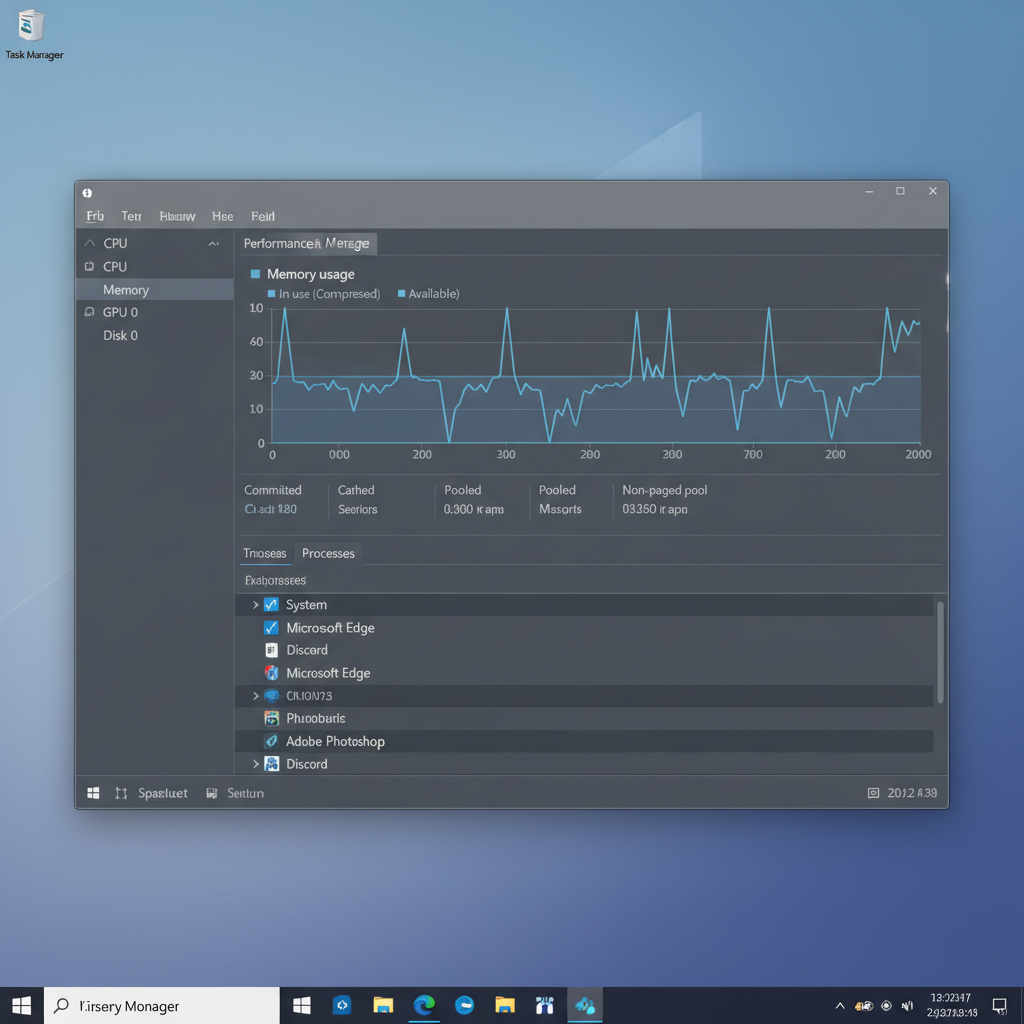
What “not using full RAM” usually means (and when it’s normal)
Windows memory behavior is not a gas tank where “full” equals “better.” Games allocate what they need, then the OS caches the rest for faster file access. So seeing 6–10 GB “in use” on a 32 GB system can be completely healthy.
In many cases, the game is limited elsewhere:
- VRAM-bound: high textures hit the GPU’s video memory first, then the game streams assets, and system RAM won’t fix that alone.
- CPU-bound: the CPU can’t feed frames fast enough, so extra RAM sits idle.
- Engine cap: some games have internal memory pools or conservative allocators to avoid crashes.
A quick reality check: if the game is smooth, stable, and loading times feel normal, “not using full RAM” is typically not a problem you need to solve.
Fast diagnosis: decide what you’re actually bottlenecked by
Before changing settings, get a clean read on what’s constrained. Use the same scene (same save/checkpoint) to avoid chasing noise.
Use this 5-minute checklist
- In Task Manager > Performance, does Memory show high usage and “Committed” near the limit? If yes, you may be hitting the page file ceiling.
- Does Disk spike to 100% during stutters? That often points to paging or asset streaming from a slow drive.
- Is GPU usage high while VRAM is near max? That’s usually a VRAM/texture issue, not system RAM.
- Is one CPU core pinned near 100% while others are lower? Many games bottleneck on a main thread.
- Does the game run as a 32-bit executable? That can hard-limit addressable memory.
According to Microsoft, Windows uses virtual memory (RAM plus page file) and will move less-used pages to disk when needed, which is why page file configuration can matter when games spike memory demand.
Common causes that make a game underuse RAM
When people ask how to fix game not using full ram, it’s usually one of these scenarios.
- 32-bit game build: many 32-bit apps can’t address large amounts of memory, even if you have plenty installed.
- Page file disabled or too small: the system avoids committing more memory, or you hit commit limits and get stutter/crashes.
- Running on an HDD: the game streams assets from disk, and slow storage creates the stutter you’re blaming on RAM.
- Background apps reserving memory: browsers, overlays, launchers, capture software, RGB tools, and mods can fragment or reserve memory.
- Mods/high-res textures: can increase memory spikes; some engines respond by streaming aggressively instead of caching.
- Misleading metrics: “Available” includes cache; “In use” doesn’t show how efficiently the engine caches assets.
Fixes that actually help (Windows 10/11), by scenario
These steps aim for stability first. The goal is not “force max RAM,” it’s to remove limits and reduce paging/stutter.
1) Confirm you’re running the 64-bit version (when available)
Many modern games ship only 64-bit, but some older titles still offer both.
- In Steam/Epic, check game properties or launch options for “x64” vs “x86.”
- In Task Manager > Details, 32-bit processes often show “(32 bit)” in the name.
- If only a 32-bit build exists, don’t expect it to use large memory pools; focus on reducing texture size/mod load, and keep a healthy page file.
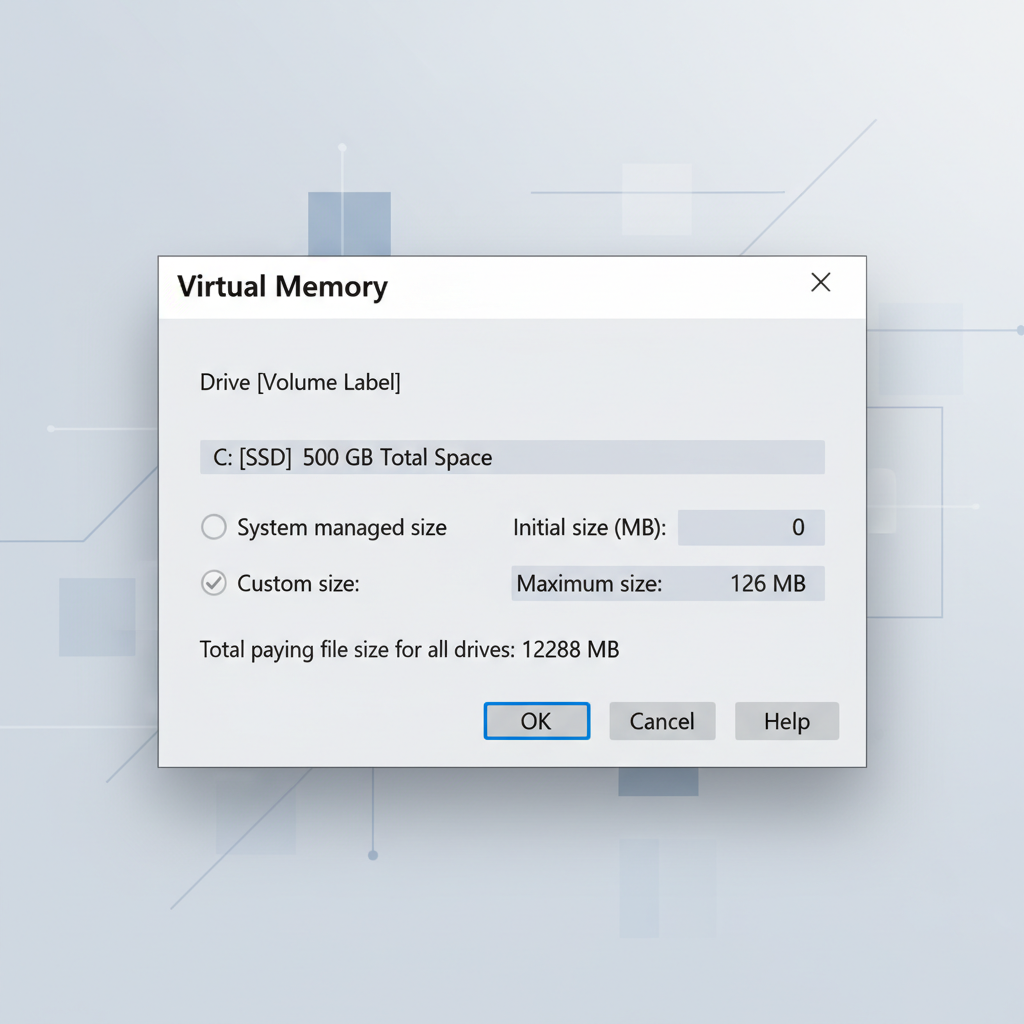
2) Set page file to System managed (or a sensible manual range)
If you disabled the page file years ago for “performance,” this is one of the most common causes of stutter and memory errors during heavy scenes.
- Windows search: “Advanced system settings” > Performance (Settings) > Advanced > Virtual memory (Change).
- Enable System managed size on your fastest SSD, or set a manual min/max if you know what you’re doing.
- Reboot and retest the same in-game scene.
According to Microsoft, the page file supports system commit and can be required for certain crash dumps and high-commit workloads, which includes demanding games plus background apps.
3) Move the game to an SSD and reduce storage contention
If disk usage spikes during hitches, the “RAM not used” complaint is often really “assets can’t stream fast enough.”
- Install (or move) the game to an SSD/NVMe drive.
- Keep at least some free space on the drive so Windows can manage caching well.
- Pause big downloads or file indexing while testing.
4) Adjust in-game texture/streaming settings with VRAM in mind
On many titles, system RAM usage stays modest because the engine prefers VRAM caches. If VRAM is tight, it streams more and you feel it as stutter.
- Lower Texture Quality one notch before touching shadows or post-processing.
- Disable extreme “HD texture packs” unless you have the VRAM headroom.
- Look for Texture Streaming Budget or Cache Size sliders if the game offers them.
5) Reduce background overlays and memory-hungry apps
Overlays are useful, but stacking three of them can create odd performance behavior.
- Close extra browsers (especially many tabs with video), and stop unnecessary startup apps.
- Temporarily disable overlays: Discord, GeForce Experience overlay, Steam overlay, Xbox Game Bar, third-party FPS counters.
- If you stream/record, test once with capture off to isolate the impact.
Quick reference table: symptom → likely cause → what to try
| What you see | Likely cause | Fix to try first |
|---|---|---|
| RAM low, VRAM maxed, stutters when turning | VRAM limit / texture streaming | Lower textures, disable HD packs, cap resolution |
| Disk 100% during hitching | Paging or slow asset streaming | Enable system-managed page file, move game to SSD |
| “Out of memory” crash with plenty of RAM installed | Commit limit / page file too small | Increase page file, close background apps |
| One CPU core pinned, FPS won’t rise | CPU/main-thread bottleneck | Lower CPU-heavy settings (crowds, view distance) |
| Game exe shows 32-bit | 32-bit address space limit | Use 64-bit build or reduce mods/textures |
Practical “do this now” steps (a safe order)
If you just want a clean sequence, this order avoids busywork and catches the common culprits early.
- Reboot, then launch only the game and one monitoring tool.
- Confirm the game is 64-bit if a 64-bit option exists.
- Set the page file to System managed on your SSD, reboot again.
- Move the game to an SSD if it sits on an HDD.
- Lower textures one step and retest; if stutter improves, you were likely VRAM/streaming bound.
- Only after that, tweak Windows/Game Mode, overlays, and driver settings.
Mistakes that waste time (or make performance worse)
- Trying to “force” RAM usage with random launch commands: many are outdated or game-specific, and some can reduce stability.
- Disabling the page file: this can cause stutter, app crashes, or weird “out of memory” behavior even on high-RAM PCs.
- Ignoring VRAM: if the GPU memory is maxed, adding system RAM won’t magically smooth texture streaming.
- Mixing unmatched RAM kits and calling it a day: it might work, but instability can show as game stutter or crashes; run memory tests if you suspect this.
- Chasing “free RAM”: Windows caching is usually a good thing; focus on frame time consistency, not empty graphs.
When it’s time to get deeper help (or hardware checks)
If you’ve tried the basics and the game still stutters while memory looks “underused,” you might be looking at a stability or compatibility issue rather than a settings tweak.
- Frequent crashes with different games: consider running Windows Memory Diagnostic or a reputable RAM stress test, and revert any overclock/XMP changes if instability appears. If unsure, a local technician can help.
- Modded games with heavy texture packs: check mod manager logs, try a clean profile, and add mods back slowly.
- Driver-level conflicts: DDU-based clean driver installs can help in some cases, but follow official guidance and proceed carefully.
- Very old titles: 32-bit limits and engine quirks are real; community patches exist sometimes, but read documentation and avoid untrusted downloads.
Conclusion: aim for consistent frame times, not “full RAM”
How to fix game not using full ram comes down to removing artificial limits (32-bit builds, page file issues) and addressing the real bottleneck, which is often storage speed, VRAM, or CPU limits rather than raw memory capacity. If you do nothing else, keep a healthy page file, run the 64-bit version when available, and test texture settings with VRAM usage in mind.
Action steps: check 32-bit vs 64-bit, set the page file to System managed on SSD, then retest one repeatable in-game scene and watch disk and VRAM during stutters.
Key takeaways
- Low RAM usage is often normal; smooth performance matters more than a “full” graph.
- Page file settings can decide whether memory spikes cause stutter or stay invisible.
- VRAM and storage are common hidden causes behind “RAM not used” complaints.
FAQ
Why is my game only using 30–50% of my RAM?
Because the engine may not need more, or it’s capped by CPU/GPU/VRAM. Windows also uses spare memory for cache, so “unused” doesn’t mean wasted.
Will adding more RAM fix stuttering if my game isn’t using much?
Sometimes, but it depends. If stutter comes from disk paging or the system hitting commit limits, more RAM can help; if you’re VRAM-bound or CPU-bound, you’ll likely see little change.
Is it bad if a game uses almost all my RAM?
Not automatically. It can be fine if the system stays responsive and there’s no heavy paging, but if you see disk spikes and hitching, you may be running out of headroom.
Does disabling the page file improve FPS?
Usually no, and it can backfire. Many systems run more smoothly with a system-managed page file, especially when games and background apps spike memory demand.
How do I tell if I’m VRAM-limited instead of RAM-limited?
Watch VRAM usage in a trusted overlay. If VRAM is near max and stutters happen during camera movement or new areas, textures and streaming are common culprits.
My game is 32-bit—what can I do?
Use a 64-bit version if the publisher offers it. If not, reduce texture mods, keep the page file enabled, and avoid running heavy background apps while playing.
Should I change Windows Game Mode or Hardware-accelerated GPU scheduling?
They can help in some setups and hurt in others. If you change them, do it one at a time and test the same scenario so you can confidently keep or revert the change.
If you’re still stuck on how to fix game not using full ram, a good next step is to share a screenshot of Task Manager (Memory, Disk, GPU) during a stutter and your basic specs, because a quick read of those graphs often tells you which path is actually worth your time.