
how to enable fps counter in all games usually comes down to picking the right overlay for the platform you play on, then making sure it isn’t being blocked by fullscreen settings, anti-cheat rules, or another overlay fighting for the same hotkeys.
FPS looks like a simple number, but it’s often the quickest way to tell whether a “laggy” feeling is real performance drop, frame pacing issues, or just network latency, and that difference saves you hours of random tweaking.
This guide walks through the most reliable counters for PC games, what to do when the overlay won’t show up, and how to avoid the common traps that make FPS tools misbehave.
What “all games” really means (and what can block an FPS counter)
There isn’t one universal FPS counter that works perfectly in every title on every system, because games render through different APIs and modes, and some publishers restrict overlays in competitive environments.
- Exclusive fullscreen can prevent some overlays from hooking in, while borderless windowed usually plays nicer.
- Anti-cheat systems may limit third-party overlays, especially in competitive shooters, and behavior varies by game.
- Overlay conflicts happen when Steam, Discord, NVIDIA/AMD, and capture tools all try to draw on top of the game.
- Permissions matter, if the game runs as Administrator but the overlay app doesn’t, the overlay may not appear.
According to Microsoft, Xbox Game Bar is designed to provide performance widgets and overlays on Windows, but compatibility can still depend on the game’s display mode and system settings.
Fast picks: which FPS counter to use (table)
If you want the shortest path to an on-screen counter, pick the tool that matches your situation, then only switch if it fails in a specific game.
| Where you play | Recommended FPS counter | Why it’s a good default |
|---|---|---|
| Steam games on Windows | Steam In-Game FPS Counter | Low friction, works for most Steam titles |
| Non-Steam PC games | Xbox Game Bar Performance widget | Built into Windows, no extra installs |
| NVIDIA GPU users | NVIDIA overlay FPS (GeForce Experience / NVIDIA App) | Often reliable across launchers, minimal setup |
| AMD GPU users | AMD Software: Adrenalin metrics overlay | Good visibility, includes frame time and more |
| Need deep diagnostics | In-game benchmark / built-in stat display | Less likely to conflict with anti-cheat |
Enable FPS counter via Steam (best for Steam library)
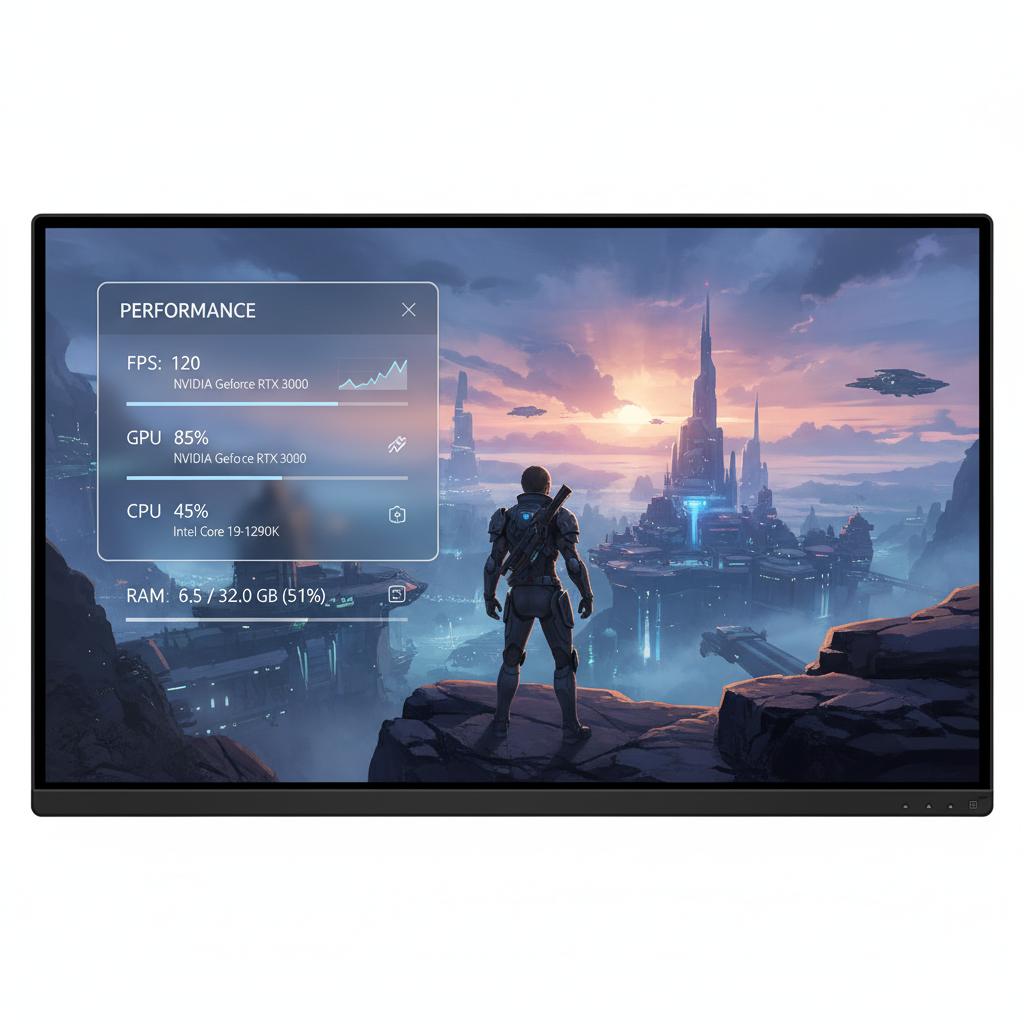
Steam’s counter is the easiest win if your game launches through Steam, and it’s usually “set once, forget.”
Steps
- Open Steam → Settings → In Game.
- Find In-game FPS counter, choose a corner position.
- Optional: enable High contrast color if it blends into the game.
- Launch the game and confirm the number appears.
If it doesn’t show
- Try switching the game from exclusive fullscreen to borderless windowed.
- Disable other overlays temporarily, especially Discord and GPU overlays.
- Make sure Steam Overlay is enabled for that game in its Properties.
Enable FPS counter with Xbox Game Bar (works beyond Steam)
If your question is literally how to enable fps counter in all games on Windows, Xbox Game Bar is a practical baseline because it covers a lot of launchers without extra accounts or plugins.
Steps
- Press Win + G to open Game Bar.
- Open Performance widget and check FPS.
- If prompted, allow access and restart your PC, Windows sometimes requires it to grant FPS permissions.
- Pin the widget so it stays on-screen while you play.
Two small gotchas
- If the widget disappears, you may have unpinned it, pinning matters.
- Some games in true exclusive fullscreen can behave oddly, borderless windowed tends to be smoother for overlays.
NVIDIA and AMD overlays (often the closest thing to “all games”)
GPU overlays hook at the driver level, so they often work across multiple launchers, and they usually add more than FPS, like frame time, GPU load, and temperatures.
NVIDIA (GeForce Experience / NVIDIA App)
- Open the NVIDIA overlay shortcut (commonly Alt + Z), then find HUD/Statistics settings.
- Turn on an FPS or Performance HUD.
- If the overlay won’t open, update the NVIDIA app/driver, then reboot, the overlay service can get stuck.
AMD Software: Adrenalin Edition
- Open AMD Software, look for Performance or Metrics overlay settings.
- Enable the on-screen metrics and select FPS display.
- If it conflicts with another overlay, turn off the others first, then re-enable one at a time.
Quick self-check: why your FPS counter isn’t showing
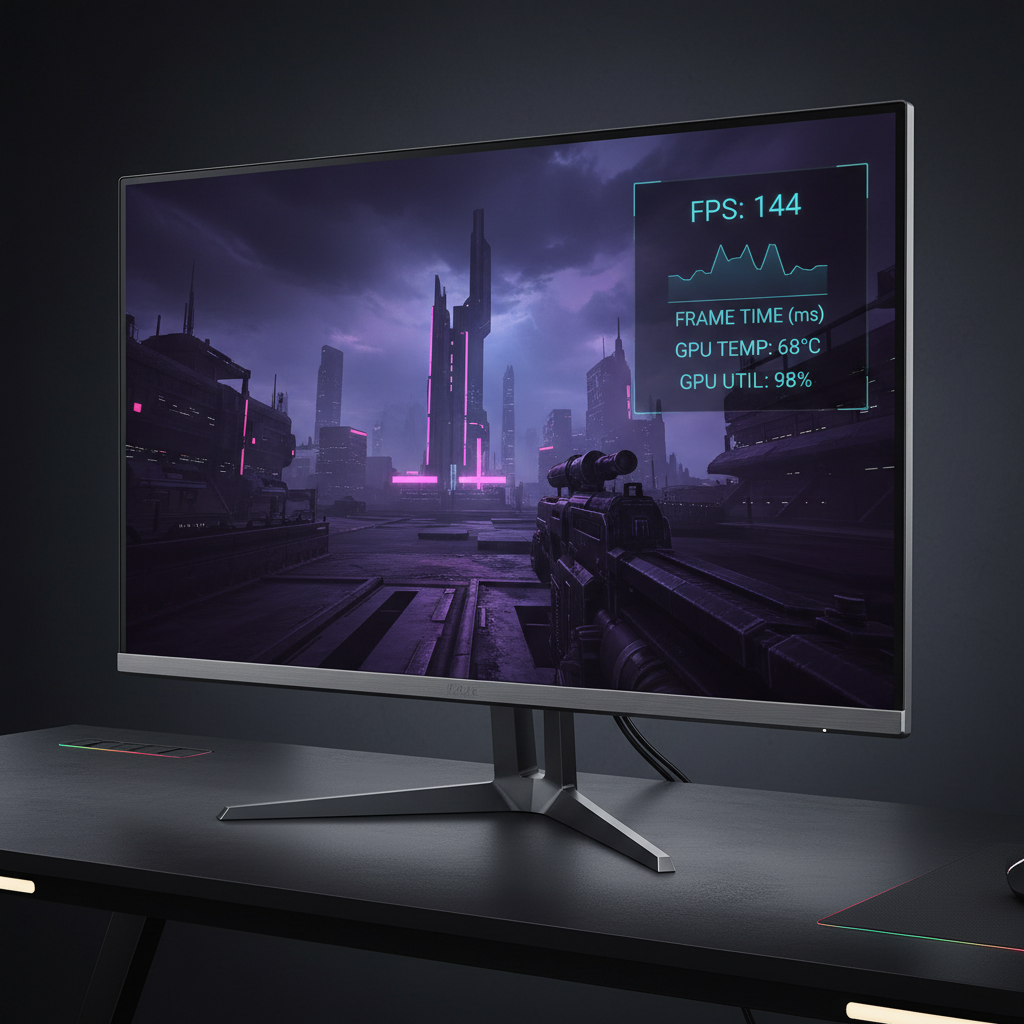
Before you reinstall anything, run this quick check, it catches most “nothing appears” cases.
- Do you have two overlays enabled? Steam + Discord + GPU overlay is a common conflict stack.
- Is the game running as Admin? If yes, run the overlay app as Admin too, or turn Admin off for the game.
- Is it exclusive fullscreen? Switch to borderless windowed and retest.
- Is the hotkey captured? Screen recorders and keyboard software can steal shortcuts.
- Is it a competitive title with strict anti-cheat? Prefer built-in displays, and avoid sketchy third-party tools.
Practical workflow: use FPS + frame time to fix stutter (not just chase a number)
Once you figure out how to enable fps counter in all games you care about, the next step is using it in a way that actually helps, otherwise you just stare at a fluctuating counter and change random settings.
Key points that matter in real troubleshooting
- Average FPS tells you how fast frames render overall.
- 1% lows or frame time spikes often explain “micro-stutter,” even when FPS looks fine.
- Consistency beats peaks, locking at 60/90/120 with stable frame pacing can feel better than 160 swinging to 70.
A simple, repeatable tuning loop
- Pick one repeatable area in-game, same location, same scene.
- Watch FPS and, if available, frame time for 60–90 seconds.
- Change one setting only, then retest, texture quality, shadows, and ray tracing are usually the big levers.
- If GPU usage sits near 95–100%, lower GPU-heavy settings, if CPU usage spikes with low GPU use, reduce crowd/physics/view distance.
Common mistakes (and the safer alternatives)
A lot of overlay advice online skips the part where certain tools can cause crashes, black screens, or bans in edge cases, so it’s worth being a little conservative.
- Stacking overlays: pick one FPS counter, then add others only if you truly need them.
- Using questionable third-party injectors: if a tool “hooks into every game,” be careful, especially in games with anti-cheat, when in doubt, don’t run it.
- Ignoring frame pacing: a stable 90 can feel smoother than a shaky 120, so look for frame time options when available.
- Testing in the wrong scene: busy city hubs, heavy fights, and new areas stress your PC more than quiet interiors.
According to Valve, the Steam Overlay is intended to work broadly within Steam games, but performance and compatibility can vary by title and system configuration.
When you should get more help (or switch tools)
If the FPS counter refuses to appear only in one specific game, it’s often a game-specific conflict rather than your PC “not supporting overlays,” and it may be faster to switch methods than to brute-force fixes.
- If a competitive game warns about overlays or blocks them, stick to built-in performance stats if available.
- If you see crashes after enabling an overlay, disable it, update GPU drivers, and test again, if it persists, consider asking the game’s support or a qualified PC technician.
- If your system stutters across many games, even with overlays off, it may be worth checking temperatures, storage health, and background apps, and if you’re unsure, consult a professional.
Conclusion: the most reliable way to keep an FPS counter everywhere
If you want a dependable setup, use Steam’s counter for Steam titles, keep Xbox Game Bar as your Windows-wide backup, and lean on NVIDIA or AMD overlays when you need broader launcher coverage, then don’t run three overlays at once, that’s where most “it doesn’t work” stories start.
Action steps: pick one tool today, verify it in two different games, then save your display mode and hotkey choices so you don’t have to re-debug next week.
FAQ
How do I enable an FPS counter in games that aren’t on Steam?
Try Xbox Game Bar first because it’s built into Windows, then use your GPU overlay if you have NVIDIA or AMD software installed, those two options cover a lot of non-Steam launchers.
Why does my FPS counter disappear in exclusive fullscreen?
Some overlays struggle to hook into exclusive fullscreen depending on the rendering API and how the game presents frames, switching to borderless windowed often fixes it without changing performance much.
Can an FPS overlay cause lower performance?
Usually the impact is small, but in some setups the overlay plus recording, chat, and browser hardware acceleration can add overhead, if you’re chasing stutter, test with only one overlay enabled.
Is it safe to use FPS counters in competitive games with anti-cheat?
Built-in counters and first-party overlays are generally safer, but rules vary by game, so if the game warns you or the overlay triggers issues, disable it and follow the publisher’s guidance.
What’s the difference between FPS and frame time?
FPS is how many frames per second you get, frame time is how evenly those frames arrive, uneven frame time often feels like hitching even when the FPS number looks okay.
How to enable fps counter in all games on a laptop with hybrid graphics?
Hybrid systems can route games through different GPUs, so use the overlay from the GPU actually running the game, and make sure Windows Graphics settings or the GPU control panel is set to “High performance” for that title.
My overlay hotkey doesn’t work, what should I check?
Look for conflicts with Discord, capture software, keyboard utilities, or Windows shortcuts, changing the hotkey to something uncommon solves more cases than people expect.
If you’re trying to standardize how you track performance across different launchers and game types, it can help to pick one “default” counter plus one fallback, then document your hotkeys and display mode so troubleshooting stays simple.